
Claude Code
Claude Code configuration guide — use Anthropic's terminal-based coding agent with New API. Supports code understanding, multi-file editing, and IDE integration.
Project Introduction
Unleash Claude's raw power directly in your terminal. Search million-line codebases instantly. Turn hours-long workflows into a single command. Your tools. Your workflow. Your codebase, evolving at thought speed.
- Official Homepage: https://www.anthropic.com/claude-code
Demo
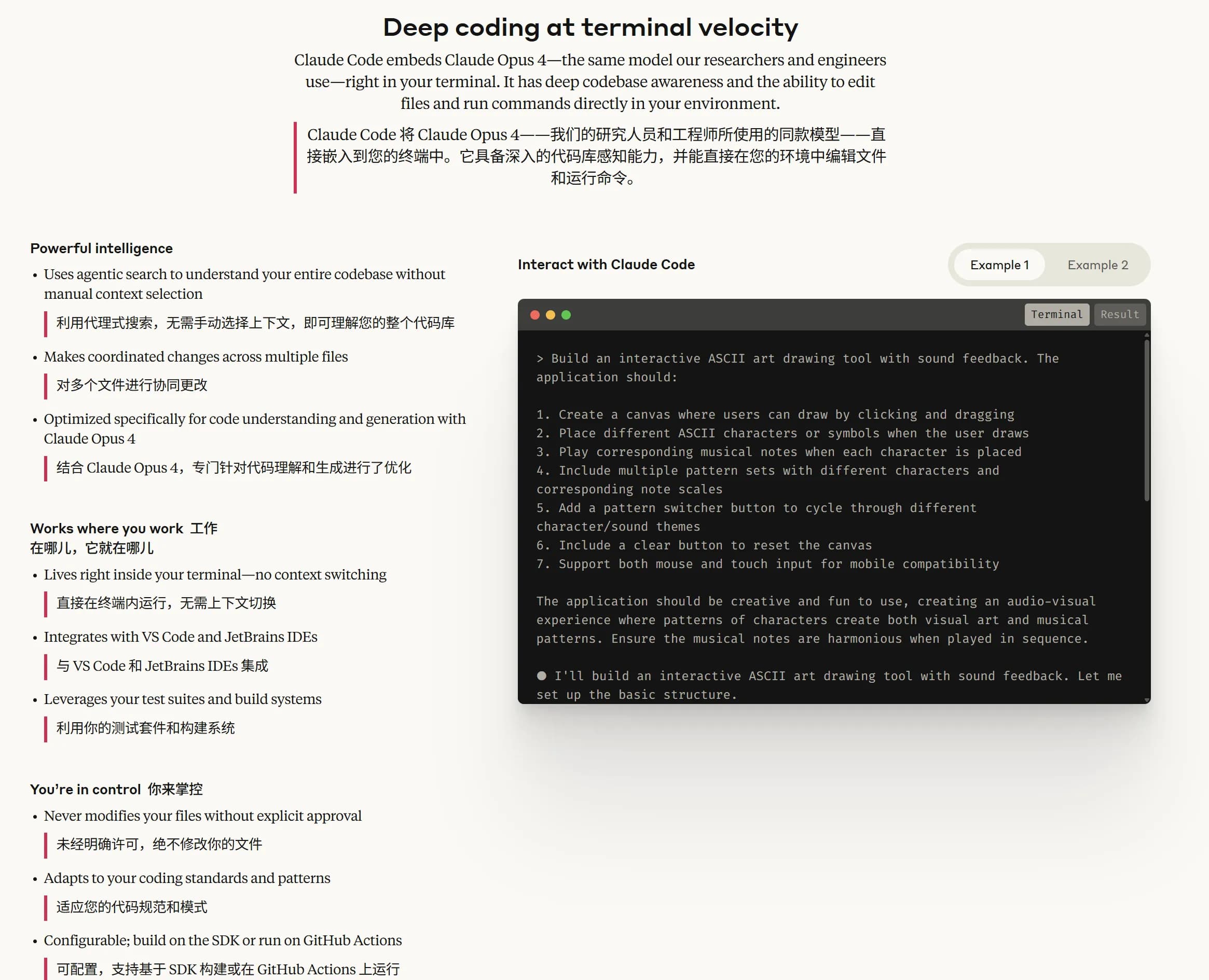
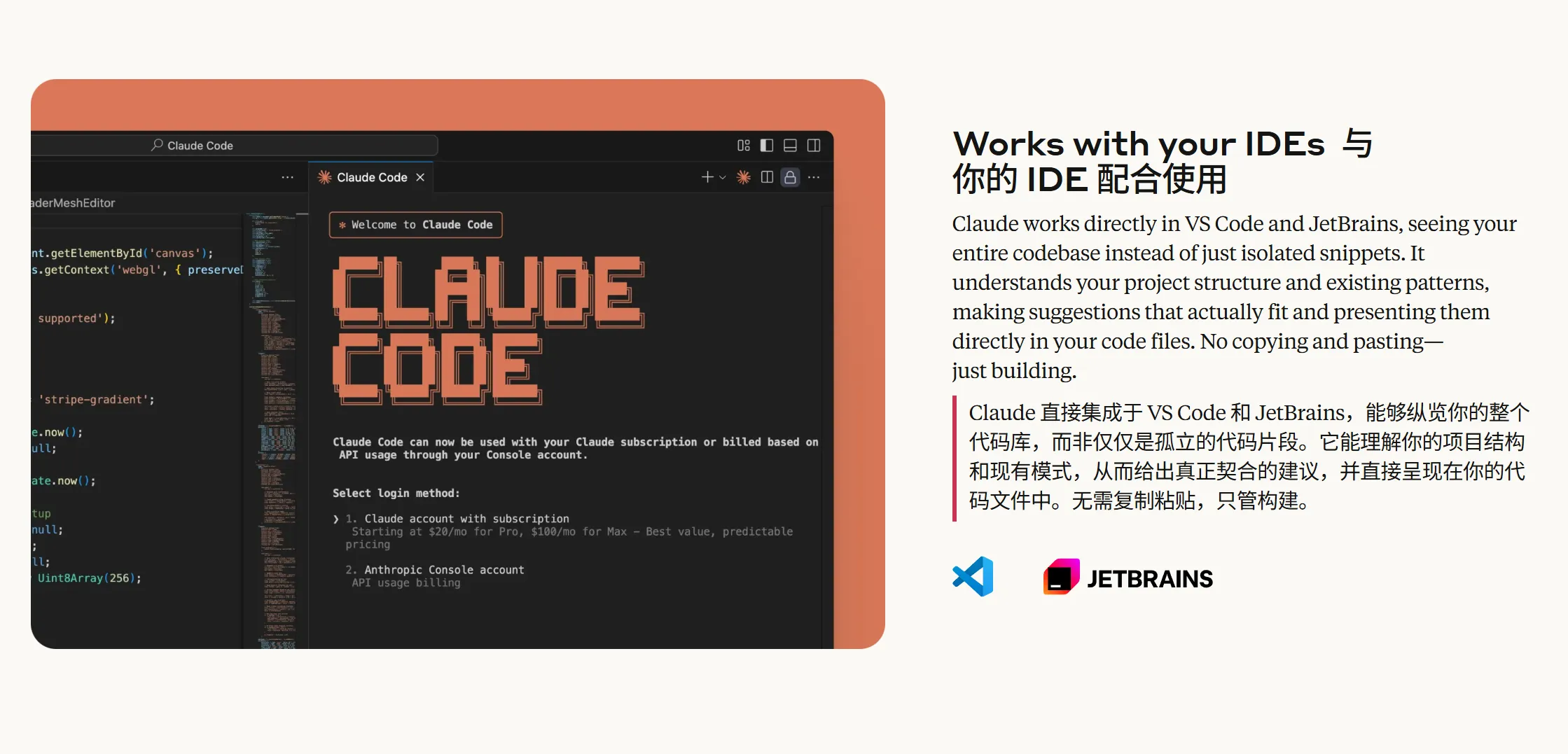
Features
| Category | Feature |
|---|---|
| Code Understanding | Deep codebase analysis, utilizing intelligent agents to search and understand project structure and dependencies |
| Automatically generates high-level code overviews, quickly helping users understand the codebase | |
| Code Editing | Supports multi-file collaborative editing, suitable for complex code modifications |
| Provides practical and usable code suggestions that align with project patterns and architecture | |
| Integration Capabilities | Supports direct execution in the terminal, eliminating context switching |
| Seamless integration with VS Code and JetBrains IDEs, no copy-pasting required | |
| Code Generation & Optimization | Automatically generates code, creates tests, fixes bugs, supporting the complete process from concept to commit |
| Optimized for code generation and understanding, combining advanced models like Claude Opus 4 | |
| Security & Flexibility | Changes require explicit user authorization, ensuring safer file and command operations |
| Adapts to user code standards, supports custom configurations | |
| Toolchain Integration | Supports integration with tools like GitHub and GitLab to achieve automated workflows |
| Integrates with test suites and build systems, enhancing existing development tools | |
| Cross-Platform & Extensibility | Supports Windows, macOS, and Linux operating systems |
| Configurable to run in SDKs or GitHub Actions, flexibly adapting to different needs | |
| Key Application Scenarios | Codebase onboarding and understanding, quick ramp-up for new members |
| Code issue fixing and optimization processes, from problem analysis to PR submission | |
| Project code refactoring and new feature implementation | |
| User Feedback Highlights | Improves daily development efficiency, saving time spent on routine tasks |
| Excellent performance in handling complex multi-step tasks, expanding development possibilities |
AI Model Configuration Method
Windows Graphical Guide
1. Install Node.js Environment
Claude Code requires a Node.js environment to run.
Node.js Environment Installation Steps
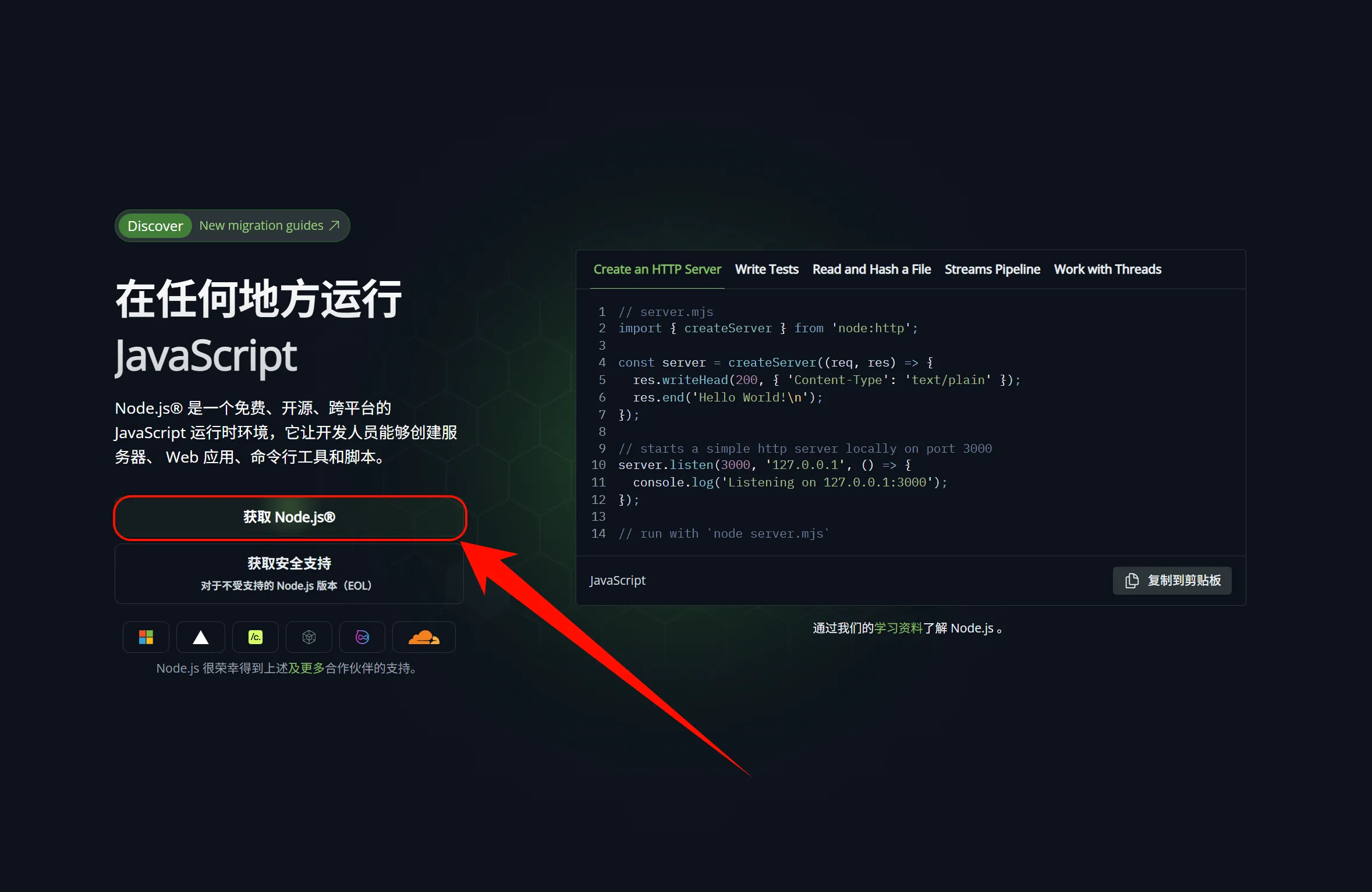
- Open your browser and visit https://nodejs.org/
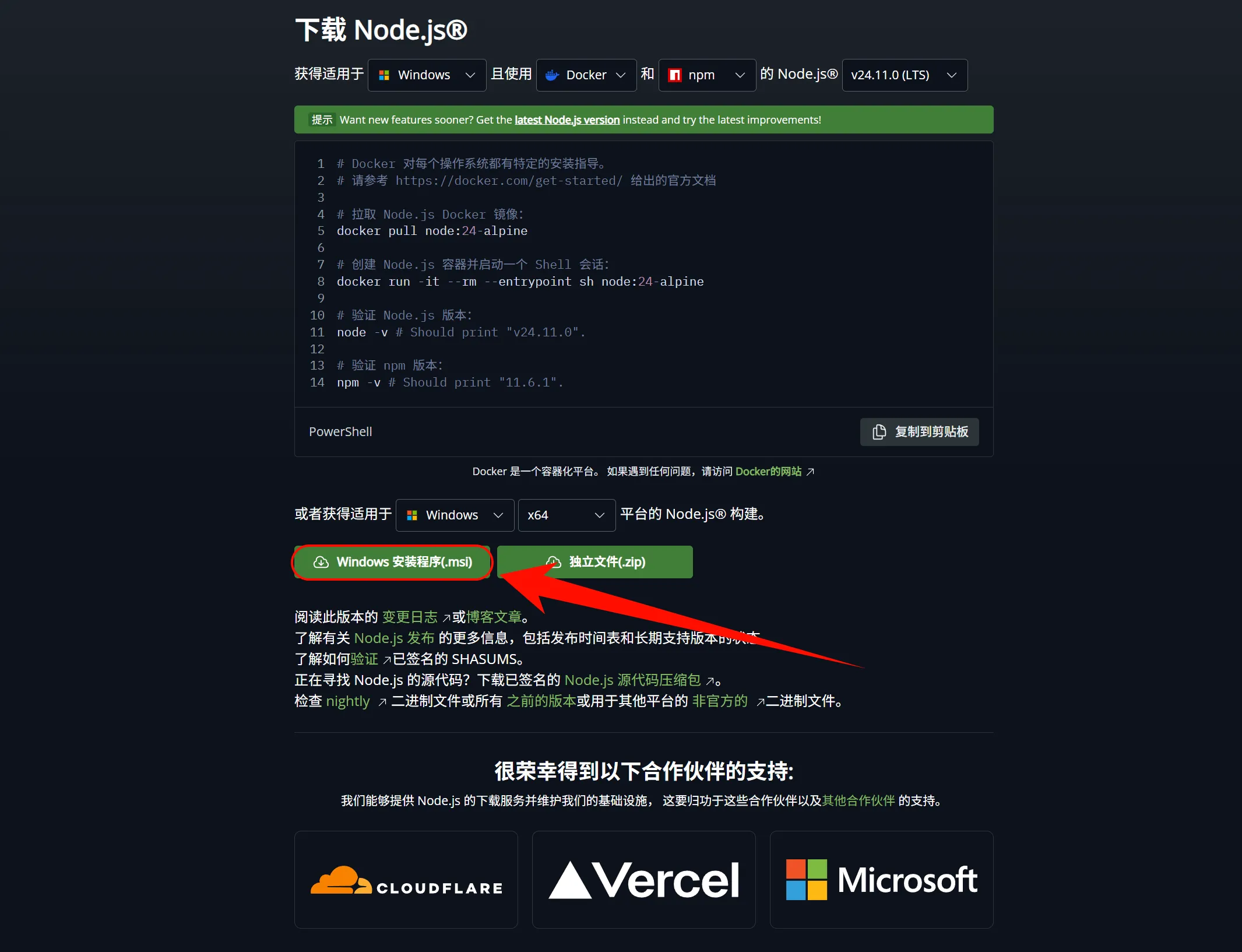
- Click the "LTS" version to download (Long Term Support version recommended)
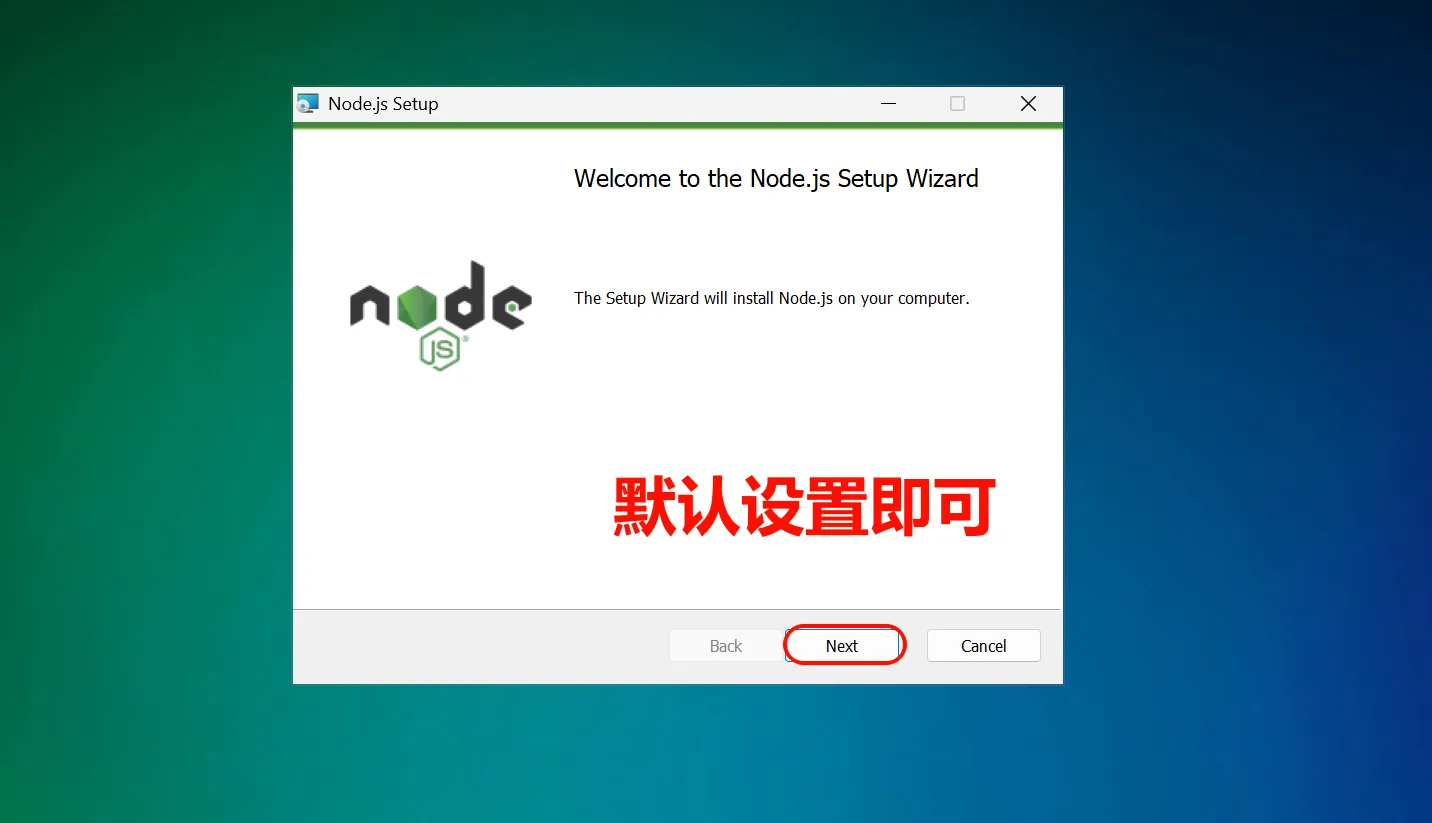
- After downloading, double-click the .msi file
- Follow the installation wizard to complete the installation, keeping default settings
Windows Notes
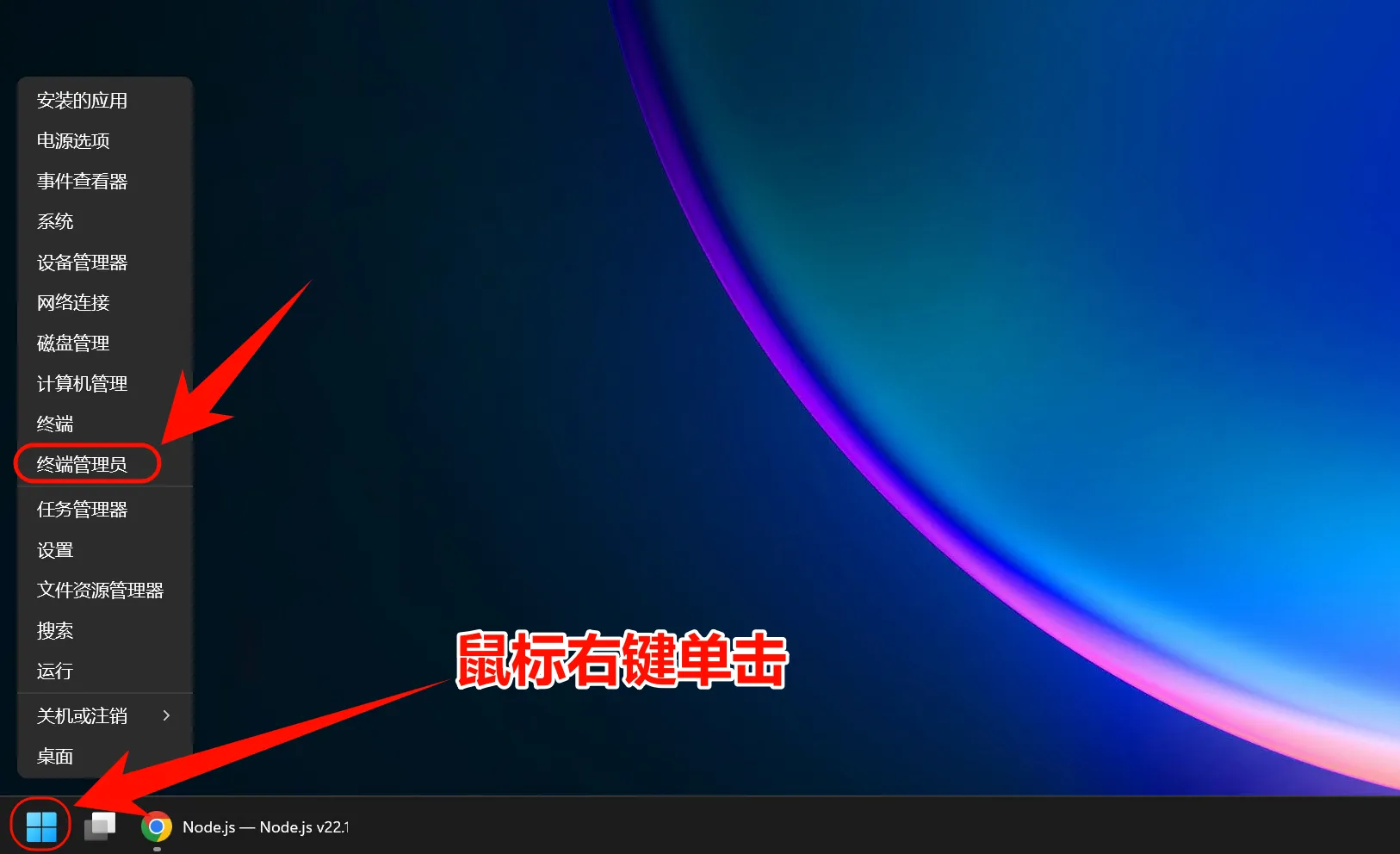
- It is recommended to use PowerShell instead of CMD
- If you encounter permission issues, try running as administrator
- Some antivirus software may report false positives; you may need to add an exception
Verify Installation Success
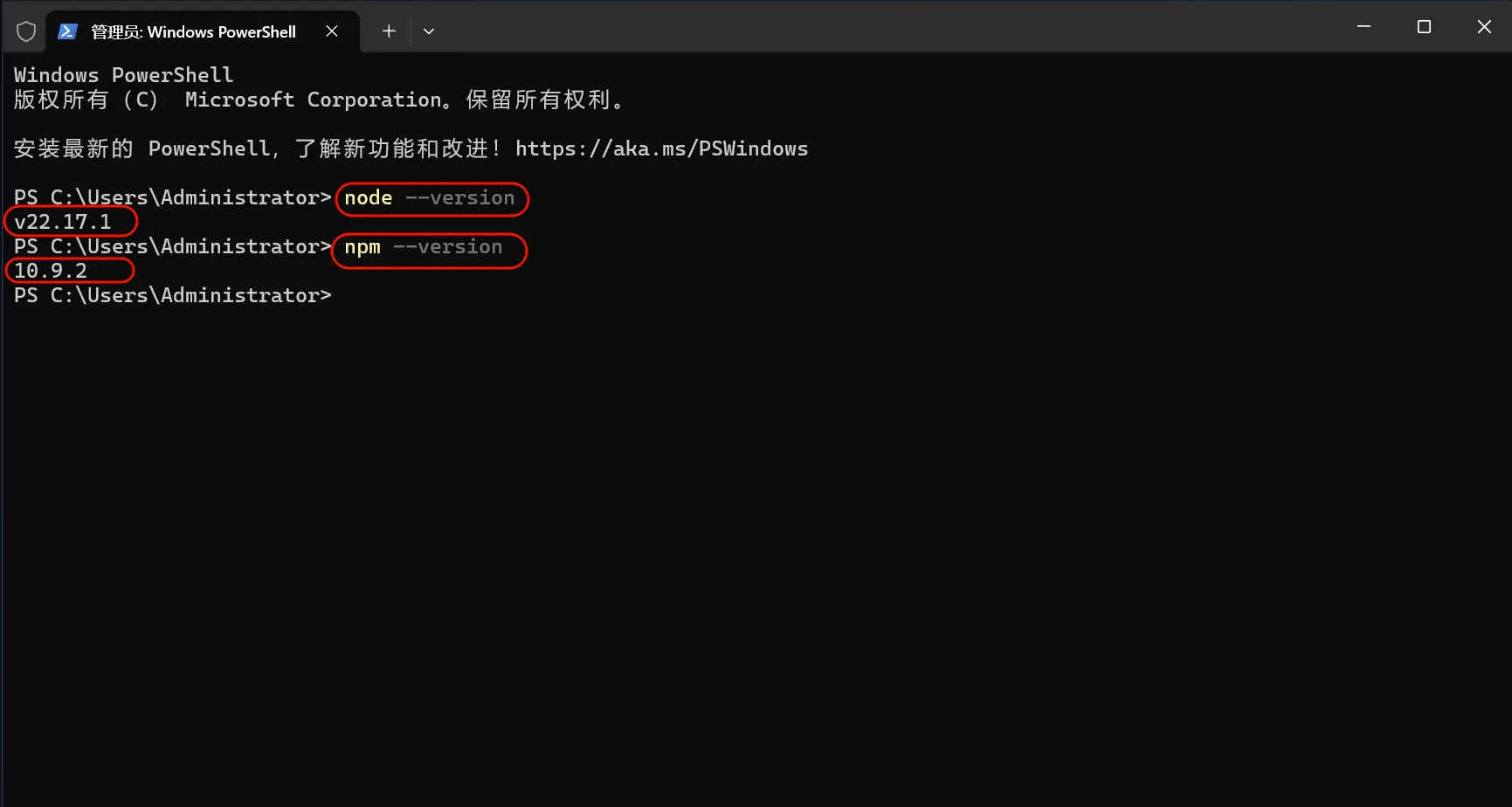
After installation, open PowerShell or CMD and enter the following commands:
node --version
npm --version
If version numbers are displayed, the installation was successful.
2. Install Git Bash
Windows Notes
In a Windows environment, Git Bash is required to install Claude Code. After installation, environment variable setup and using Claude Code will still be done in regular PowerShell or CMD.
Download and Install Git for Windows
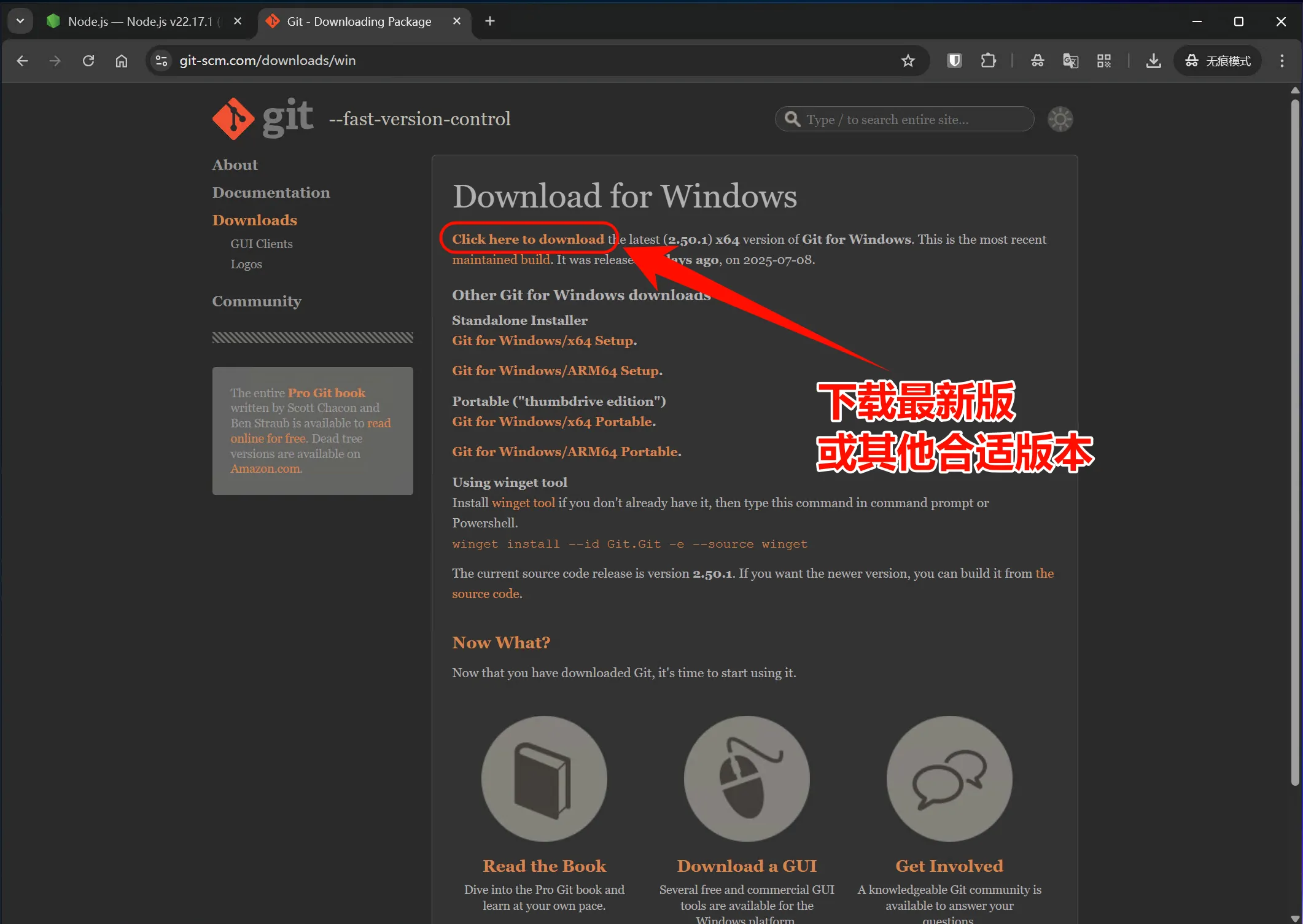
- Visit https://git-scm.com/downloads/win
- Click "Download for Windows" to download the installer
- Run the downloaded .exe installation file
- Keep default settings during installation, and click "Next" to complete the installation
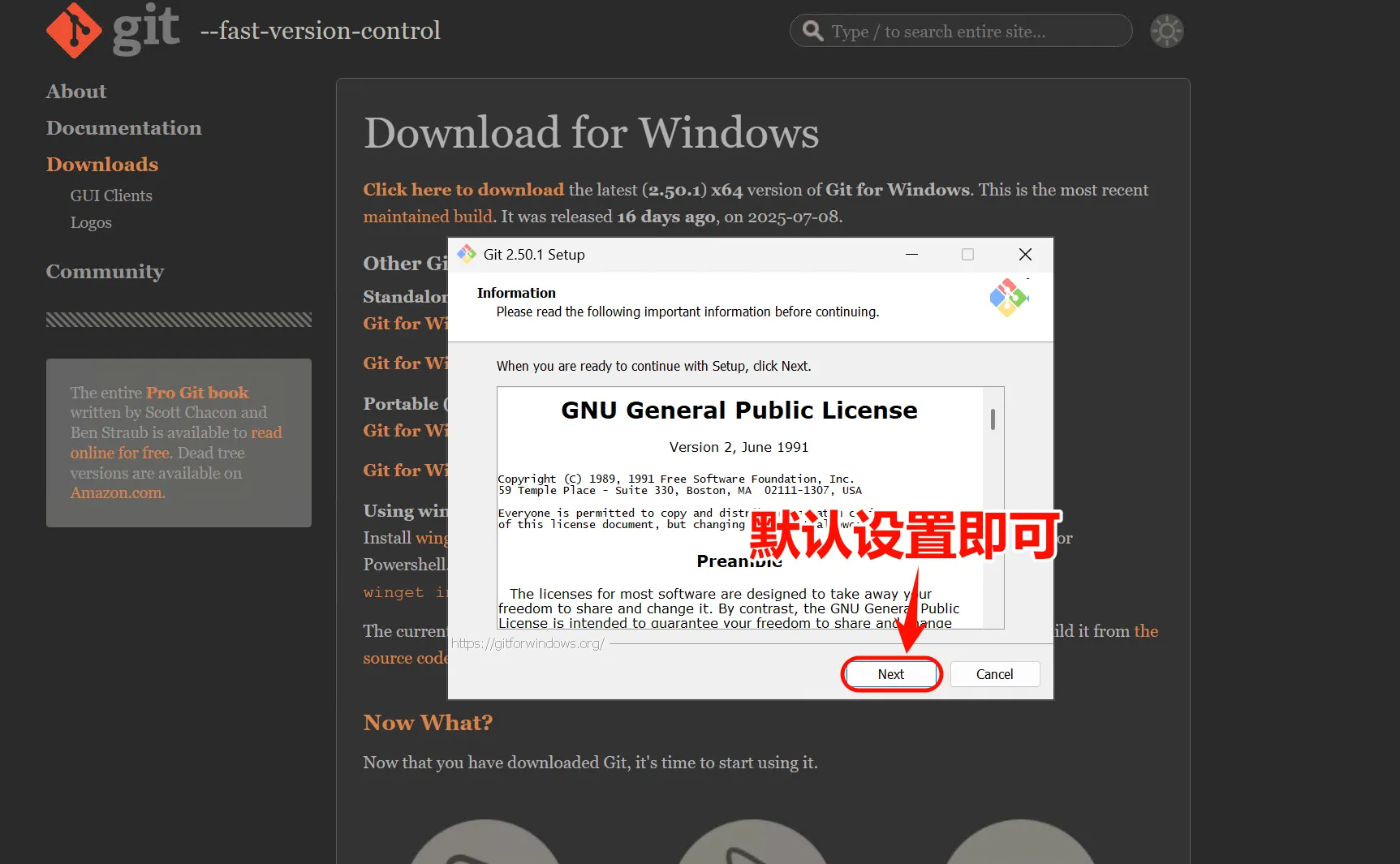
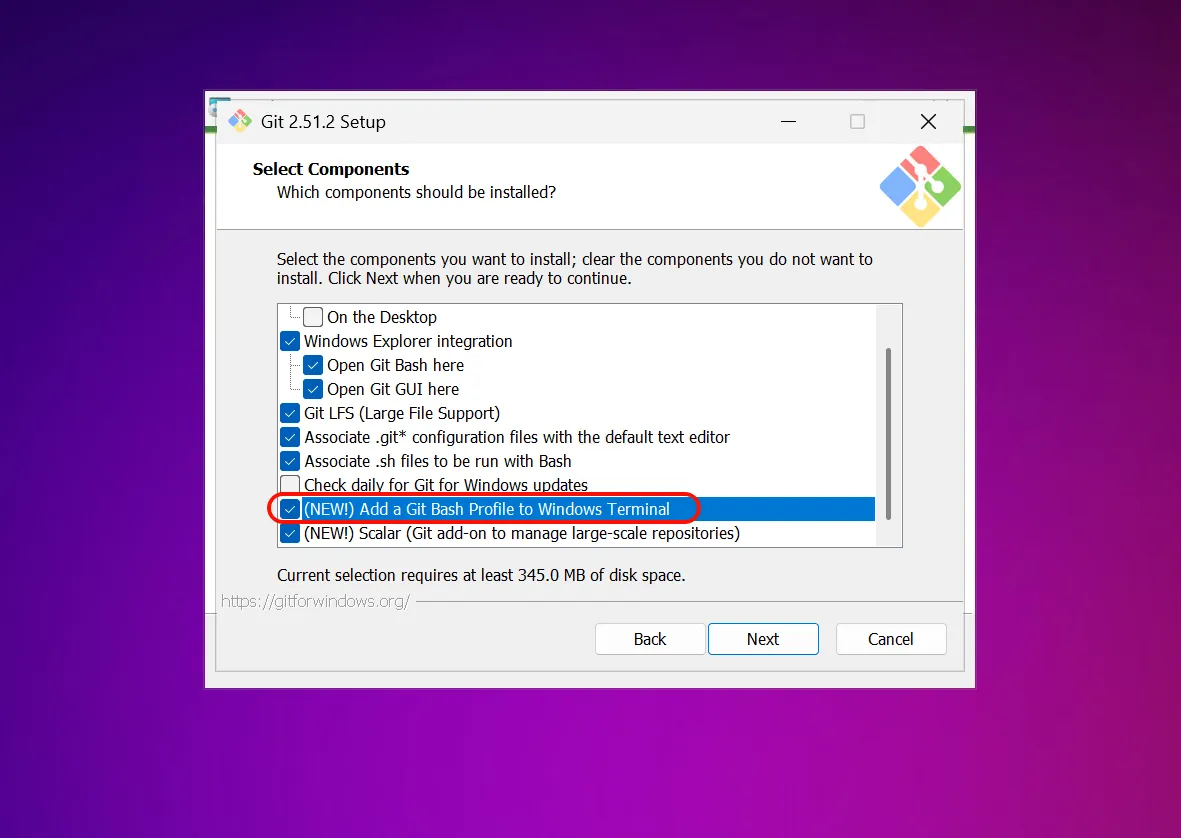
Verify Git Bash Installation
After installation, open Git Bash and enter the following command to verify:
git --versionIf a version number is displayed, the installation was successful.
3. Install Claude Code
Install Claude Code
Open PowerShell and run the following command:
npm install -g @anthropic-ai/claude-codeThis command will download and install the latest version of Claude Code from the official npm repository.
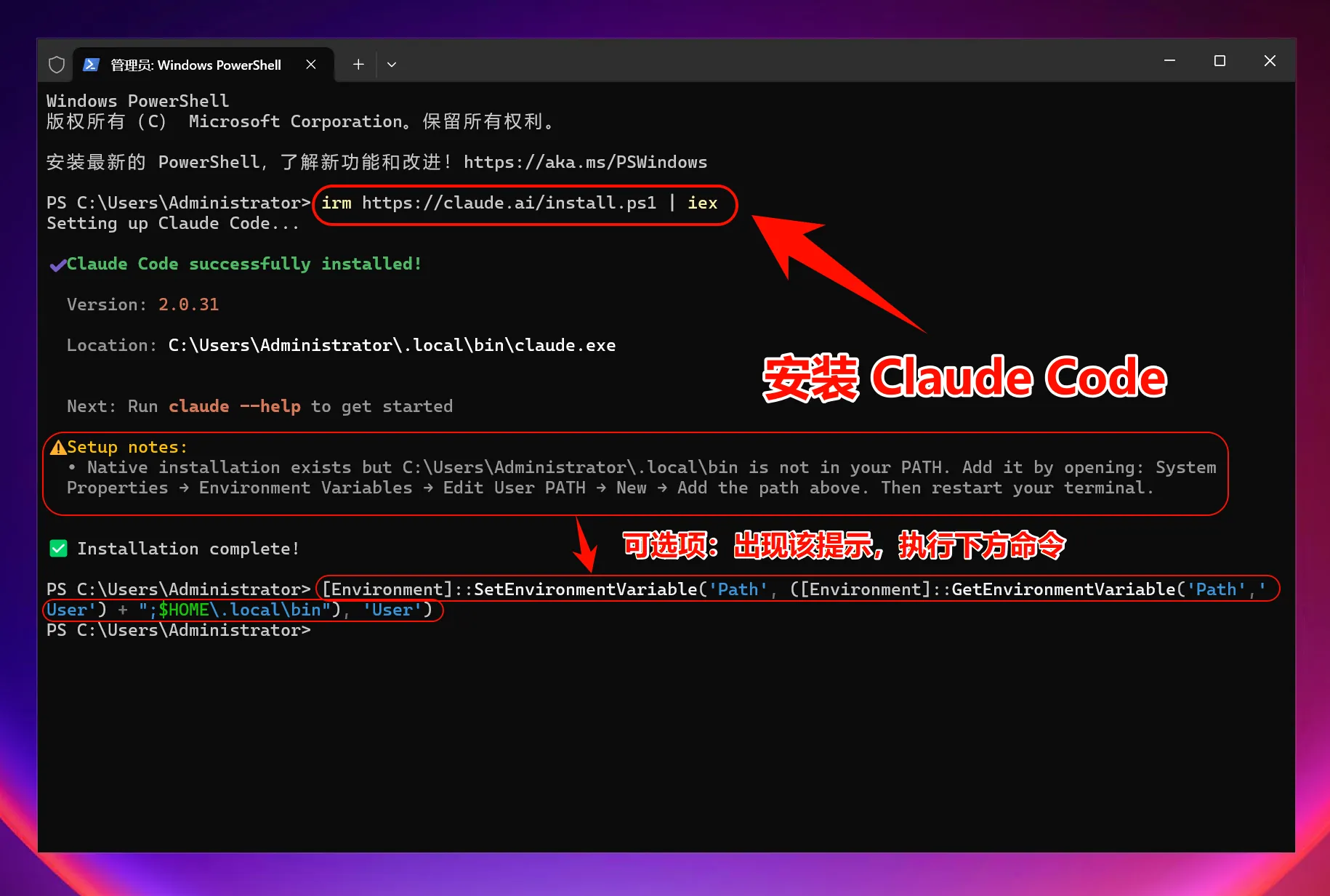
Add ~/.local/bin to PATH (only if prompted)
[Environment]::SetEnvironmentVariable('Path', ([Environment]::GetEnvironmentVariable('Path','User') + ";$HOME\.local\bin"), 'User')Verify Claude Code Installation
After installation, enter the following command to check if it was successfully installed:
claude --versionIf a version number is displayed, congratulations! Claude Code has been successfully installed.
4. Set Environment Variables
One-Click Setup Command (Windows System)
To allow Claude Code to connect to your relay service, you need to set multiple environment variables:
iex (irm 'https://raw.githubusercontent.com/QuantumNous/new-api-docs/refs/heads/main/helper/claude-cli-setup.ps1')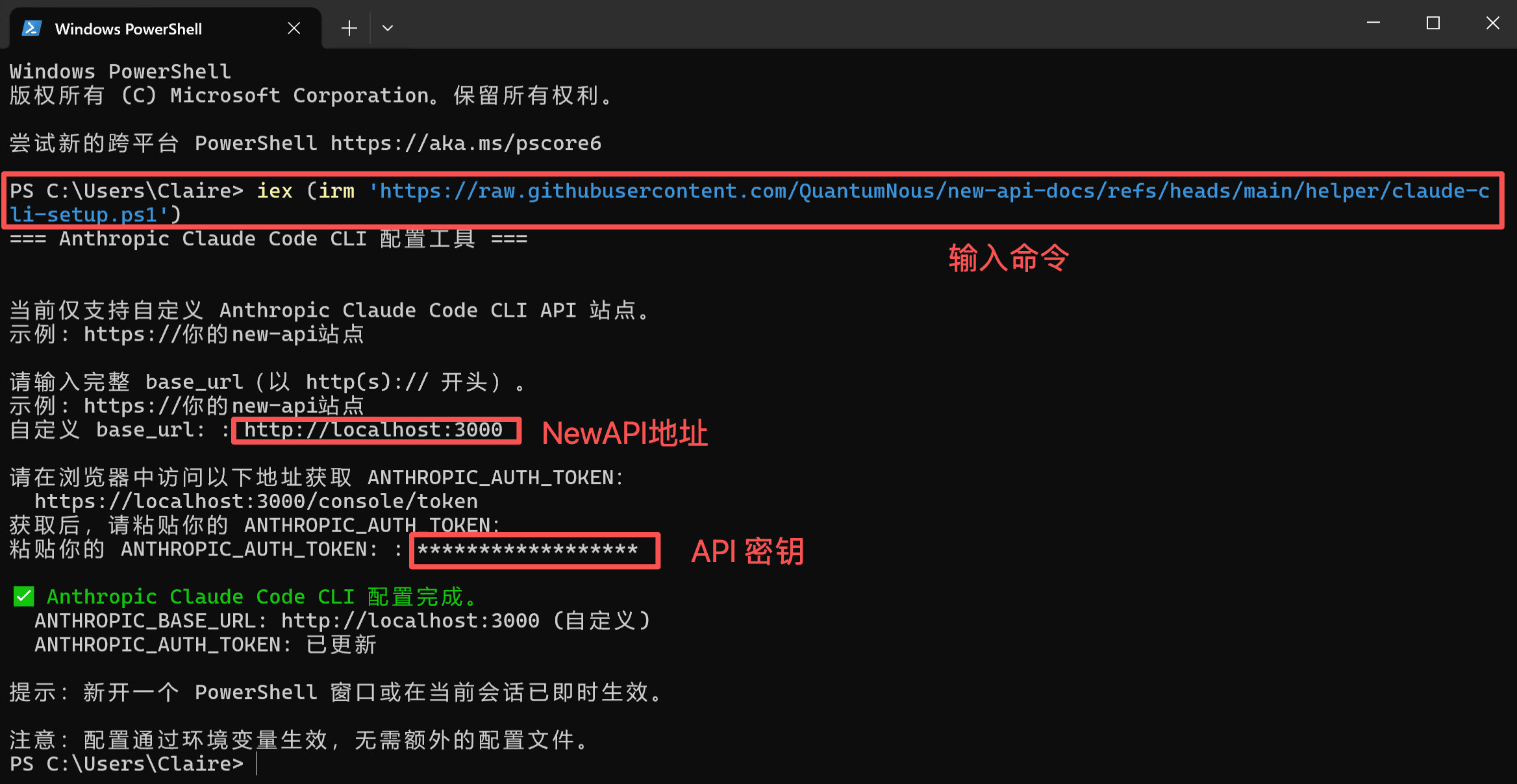
5. Start Using Claude Code
You can now start using Claude Code!
Launch Claude Code
Open PowerShell and launch Claude Code directly:
claudeTo use in a specific project:
# Navigate to your project directory
cd C:\path\to\your\project

# Launch Claude Code
claude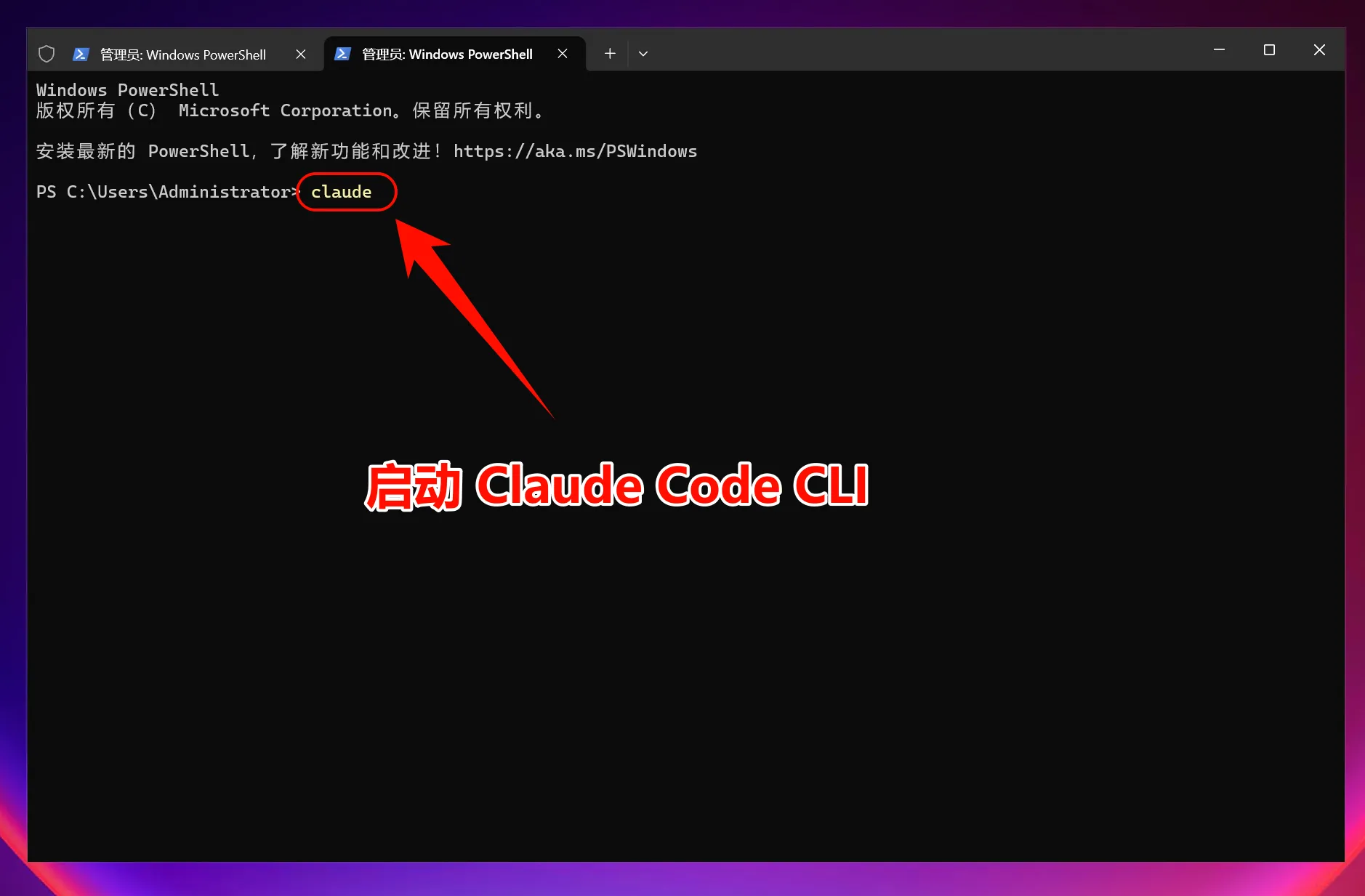
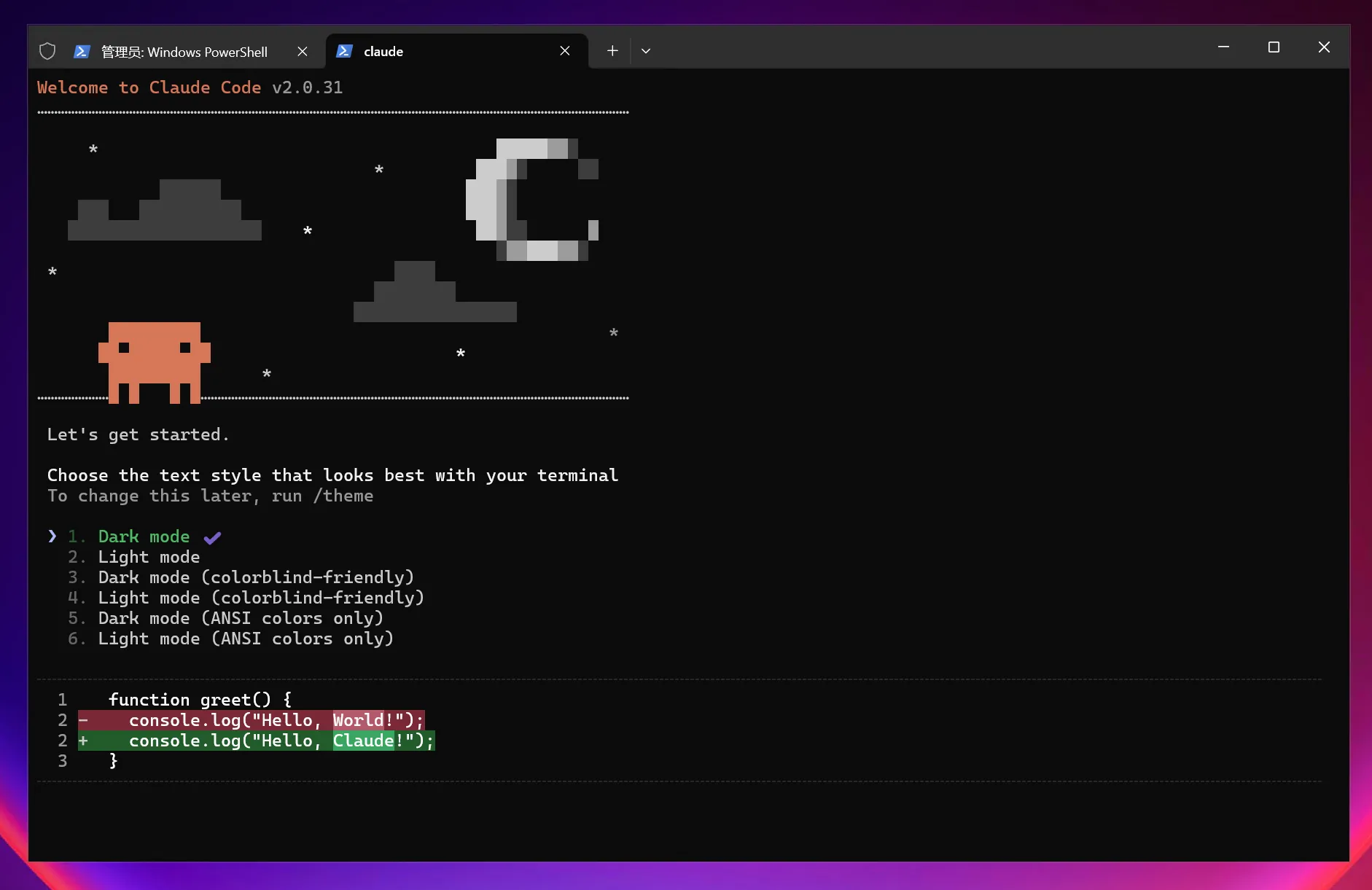
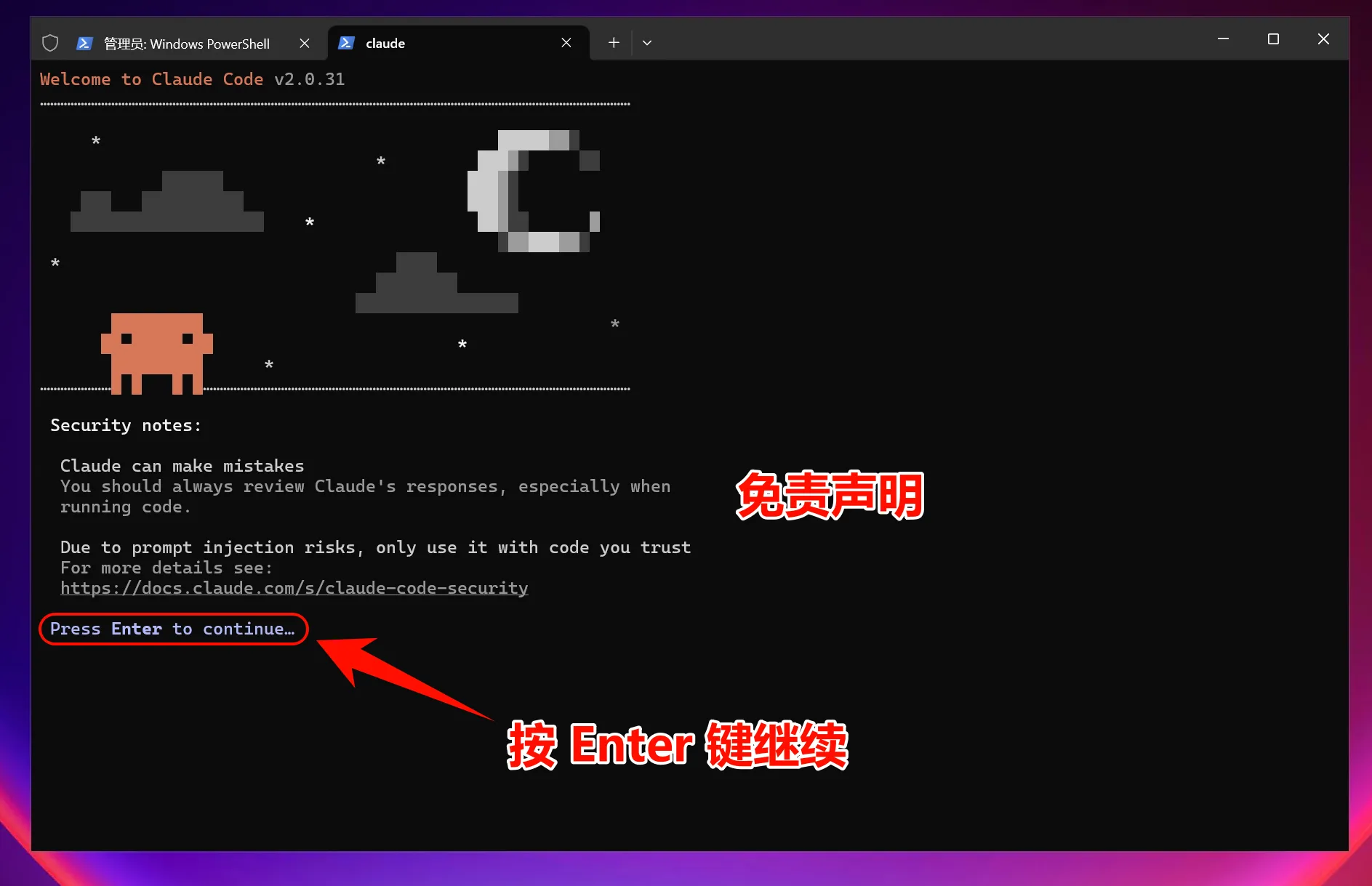
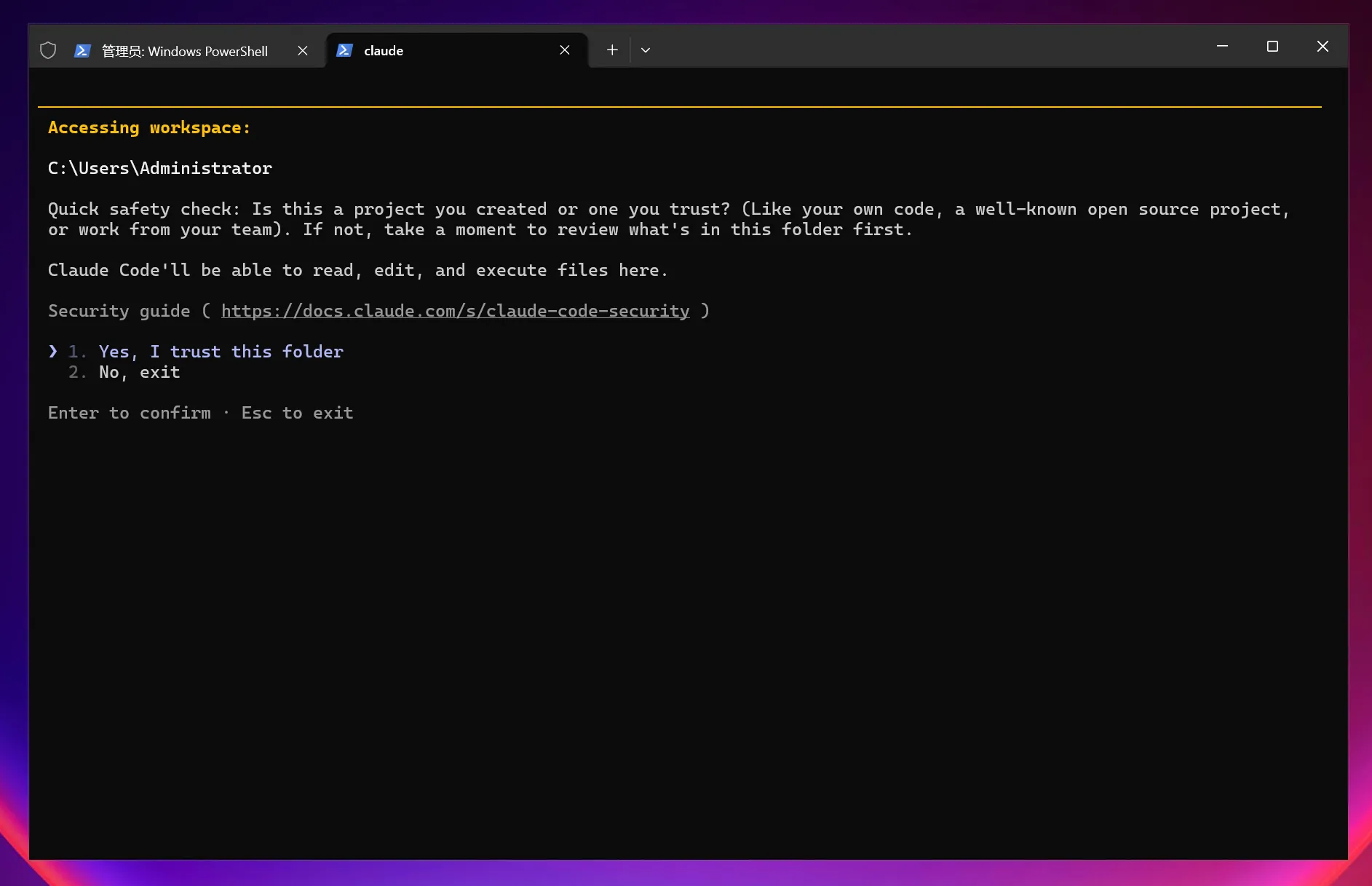
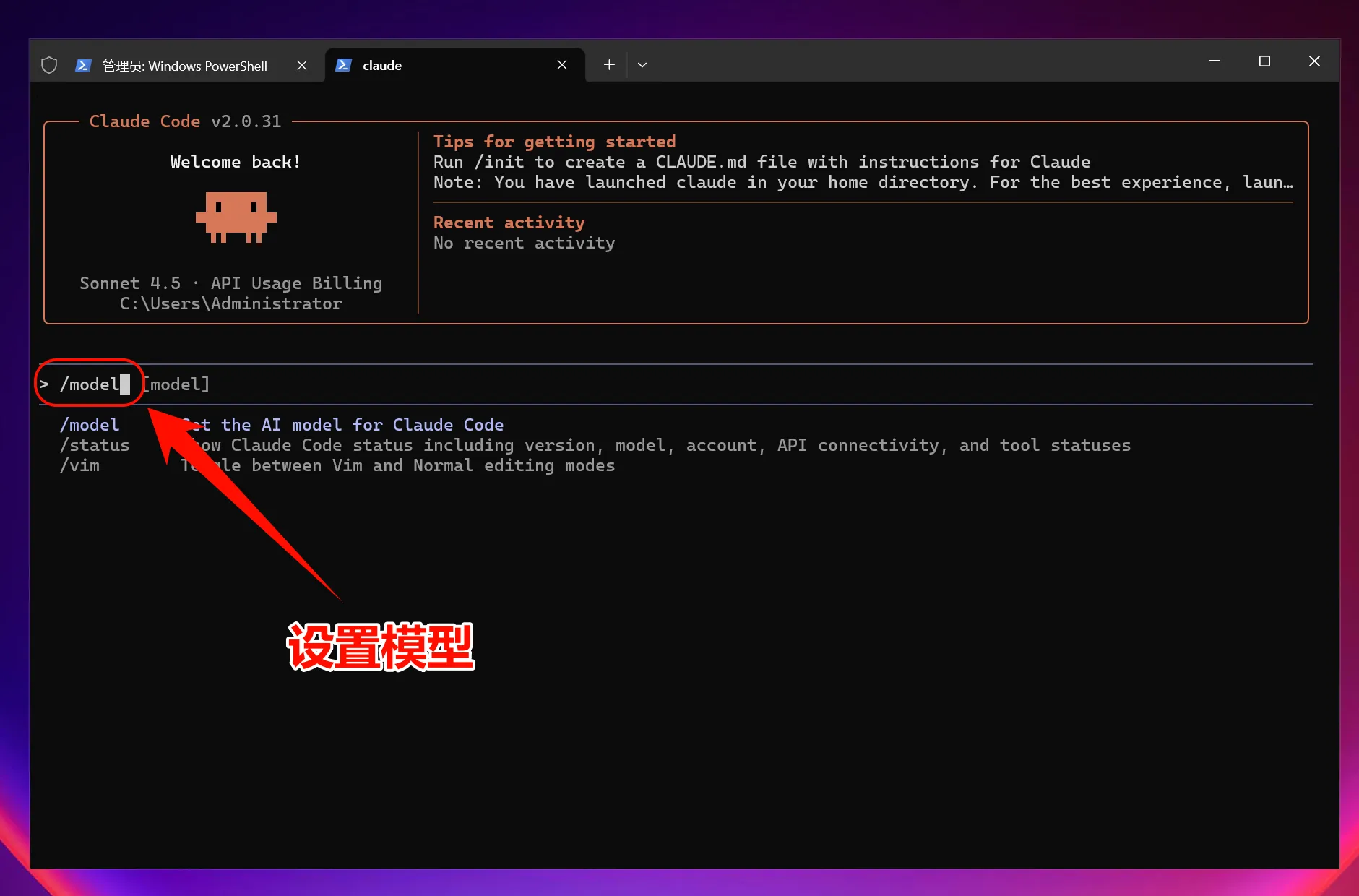
Select Model
Enter the command:
/modelPress Enter to select a model; usually, the default settings are sufficient.
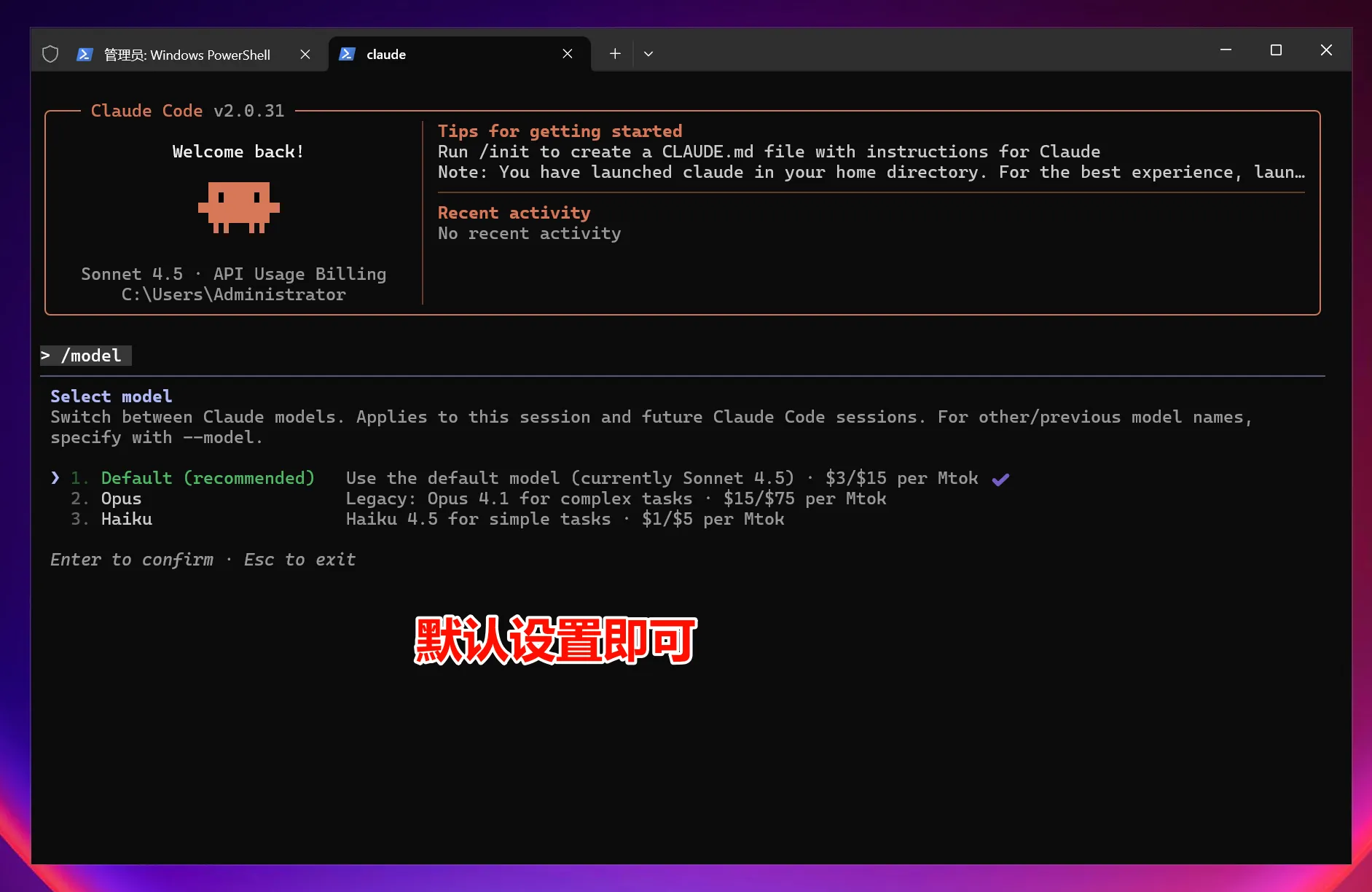
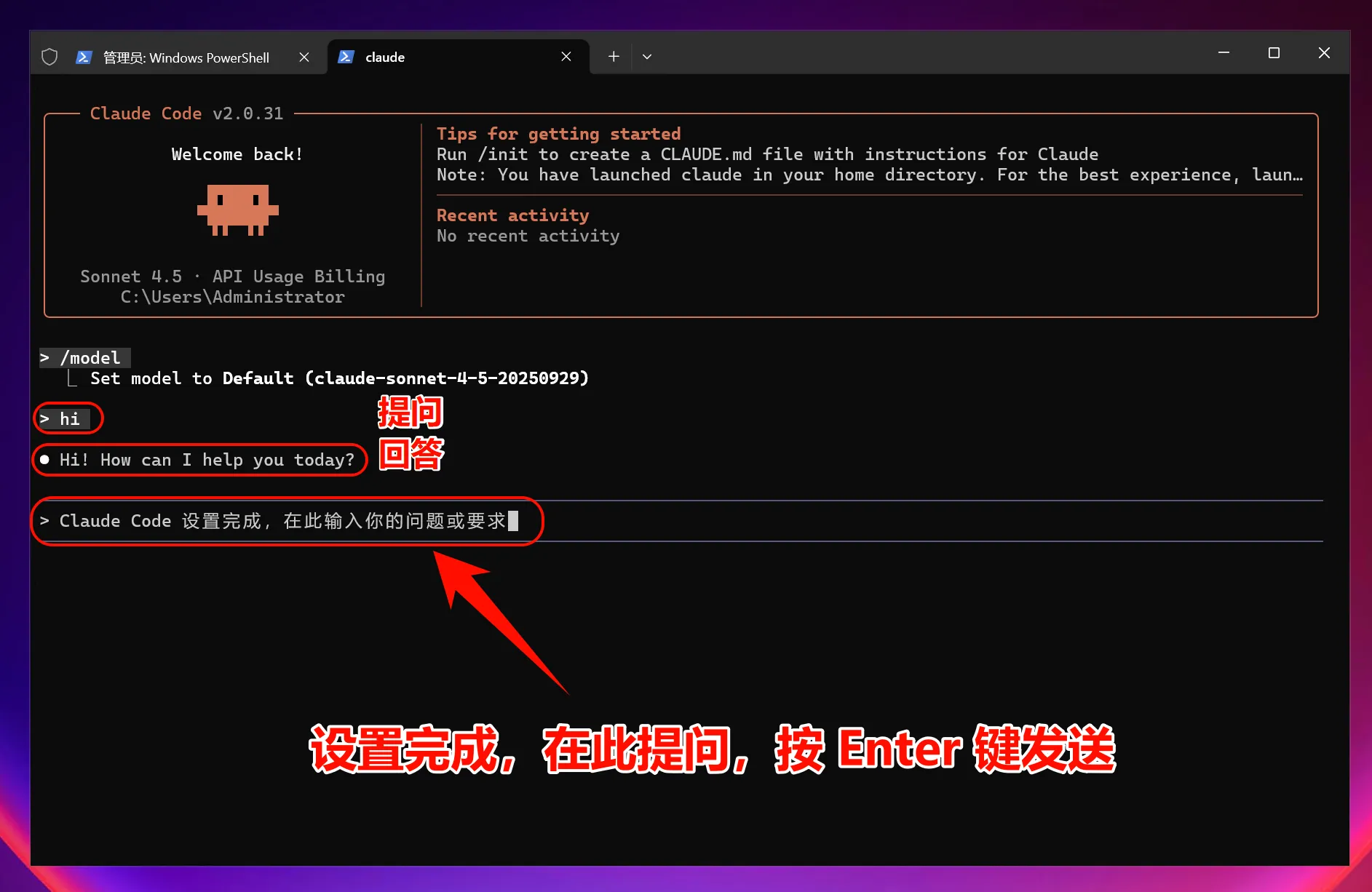
Note: After modifying environment variables, all models (including officially preset models) will call the custom access point instead of using official account quotas.
macOS Graphical Guide
1. Install Claude Code CLI
Open Terminal
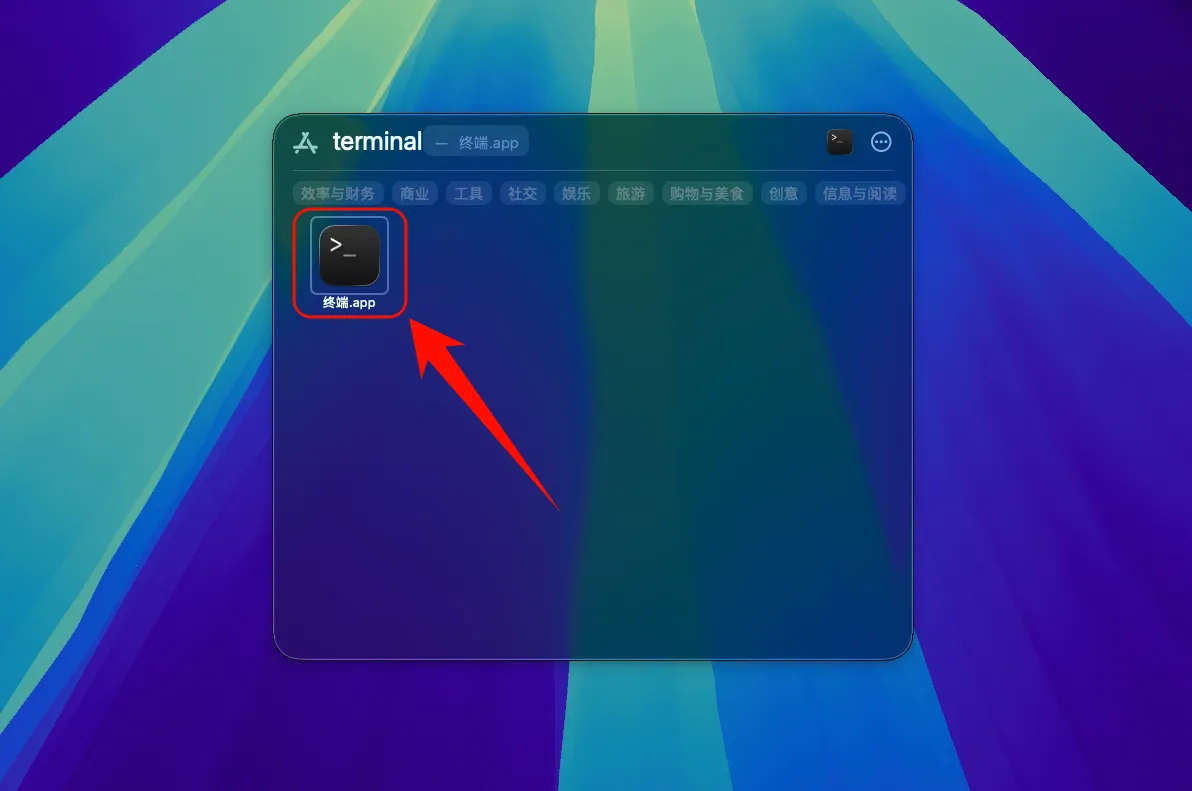
Install Claude Code
Open Terminal and run the following command:
curl -fsSL https://claude.ai/install.sh | bashOptional: Run the provided command when prompted
echo 'export PATH="$HOME/.local/bin:$PATH"' >> ~/.bashrc && source ~/.bashrc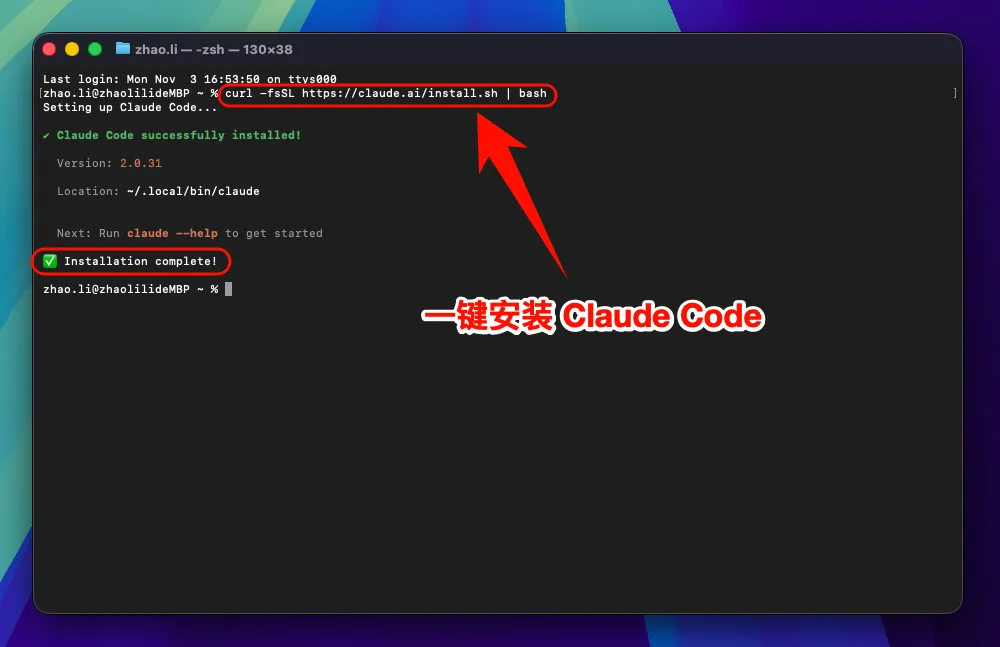
2. Set Environment Variables
To allow Claude Code to connect to a third-party relay service, you need to set environment variables:
One-Click Setup for Claude Code Environment Variables
Enter the command:
curl -fsSL https://raw.githubusercontent.com/QuantumNous/new-api-docs/refs/heads/main/helper/claude-cli-setup.sh | bash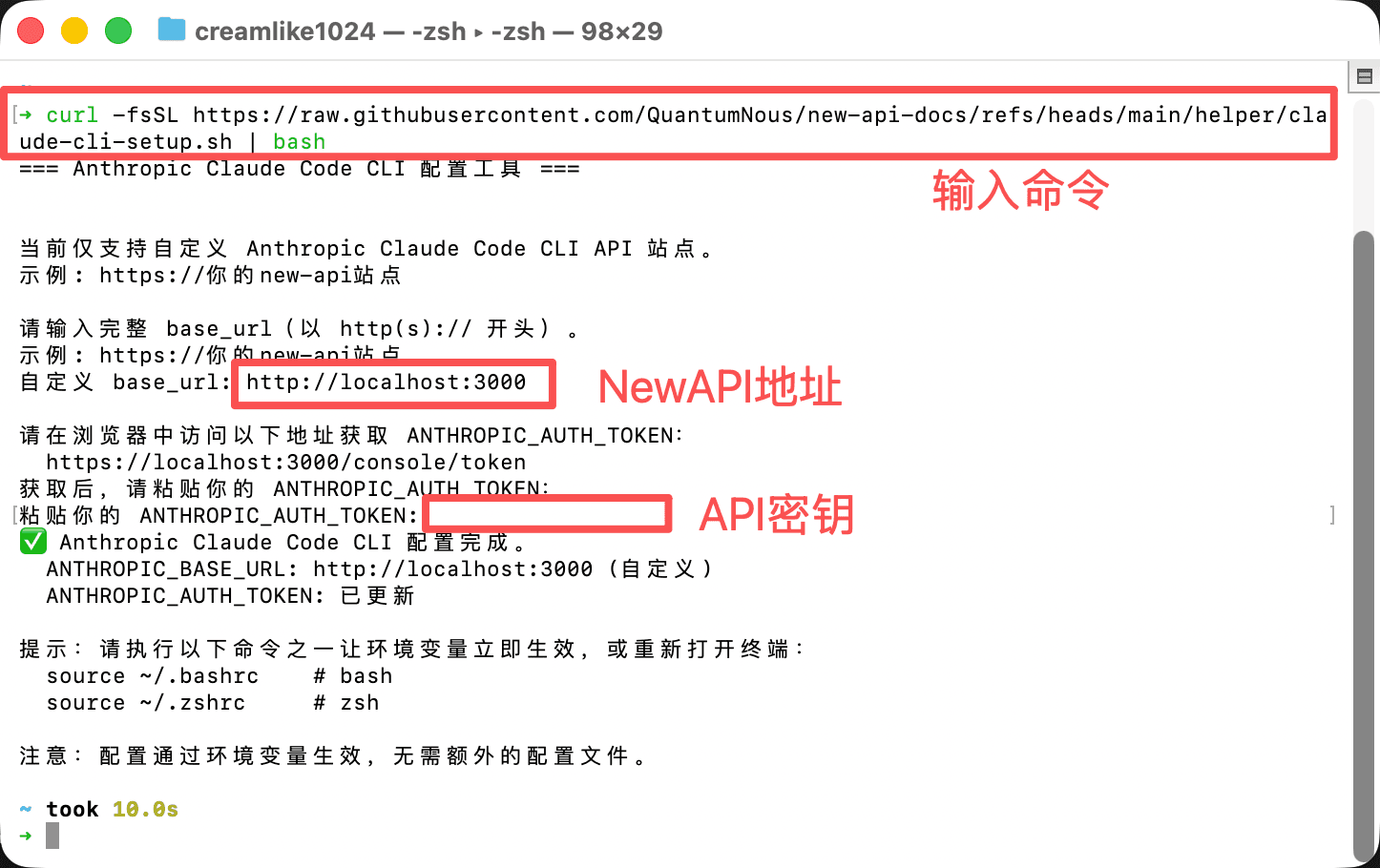
Verify Claude Code Installation
After installation, enter the following command to check if it was successfully installed:
claude --versionIf a version number is displayed, congratulations! Claude Code has been successfully installed.
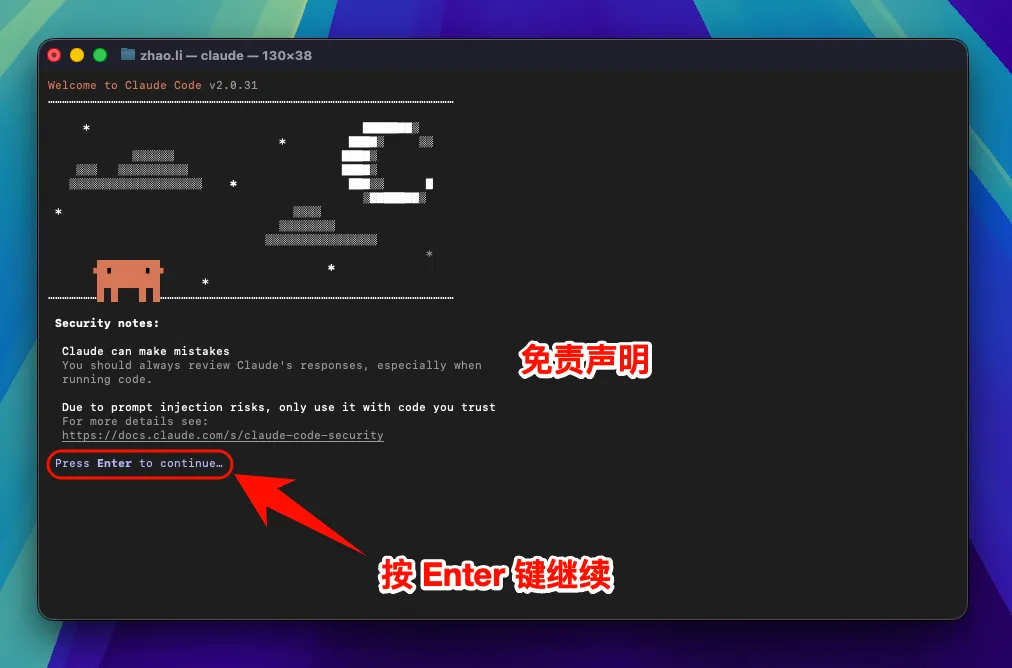
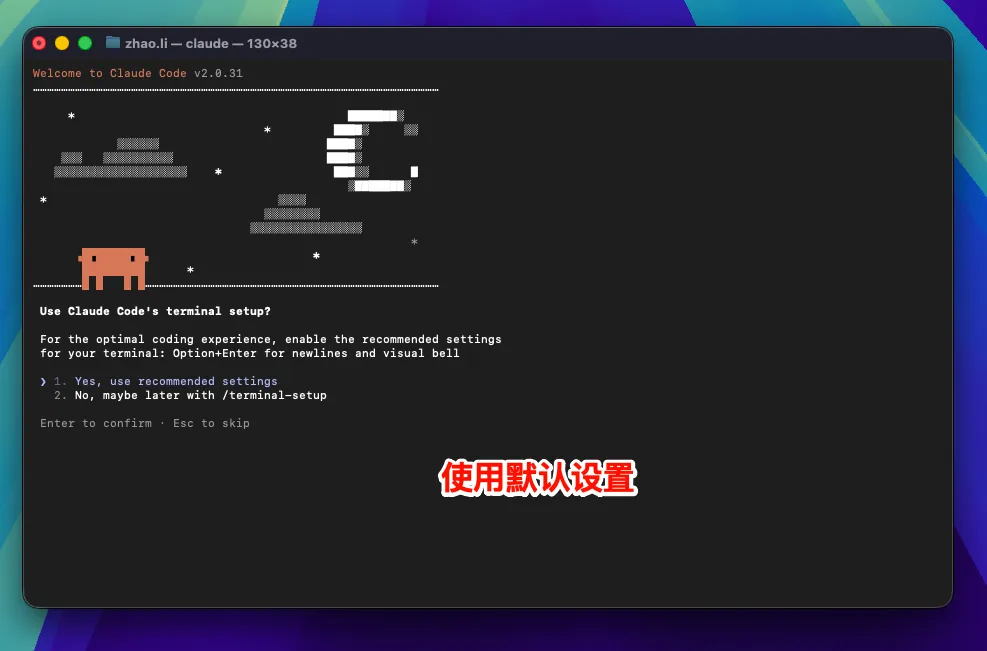
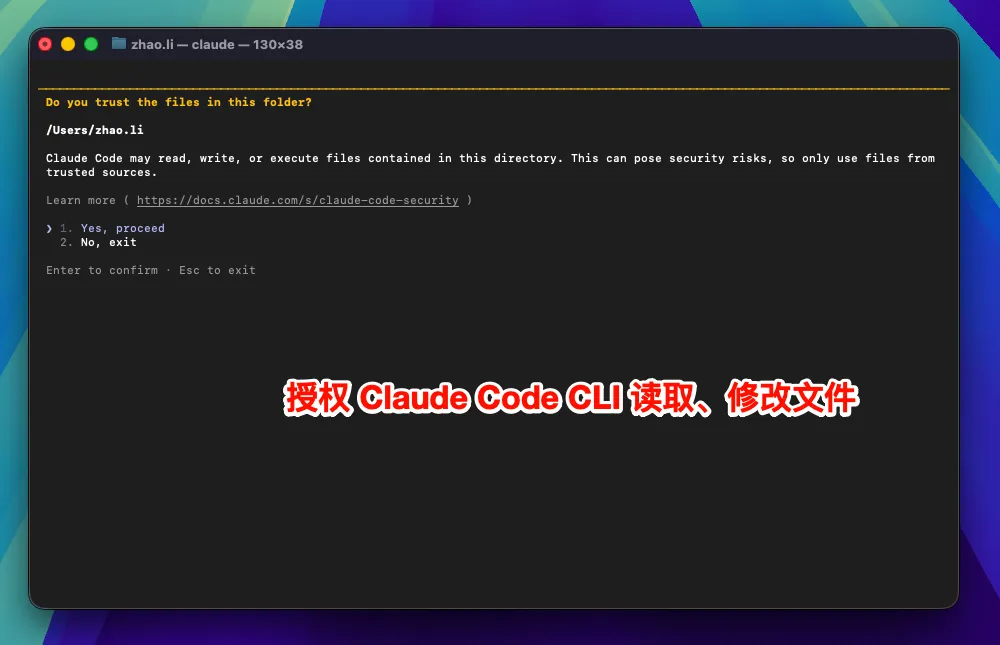
3. Start Using Claude Code
You can now start using Claude Code!
Launch Claude Code
Launch Claude Code directly:
claudeTo use in a specific project:
# Navigate to your project directory
cd /path/to/your/project

# Launch Claude Code
claude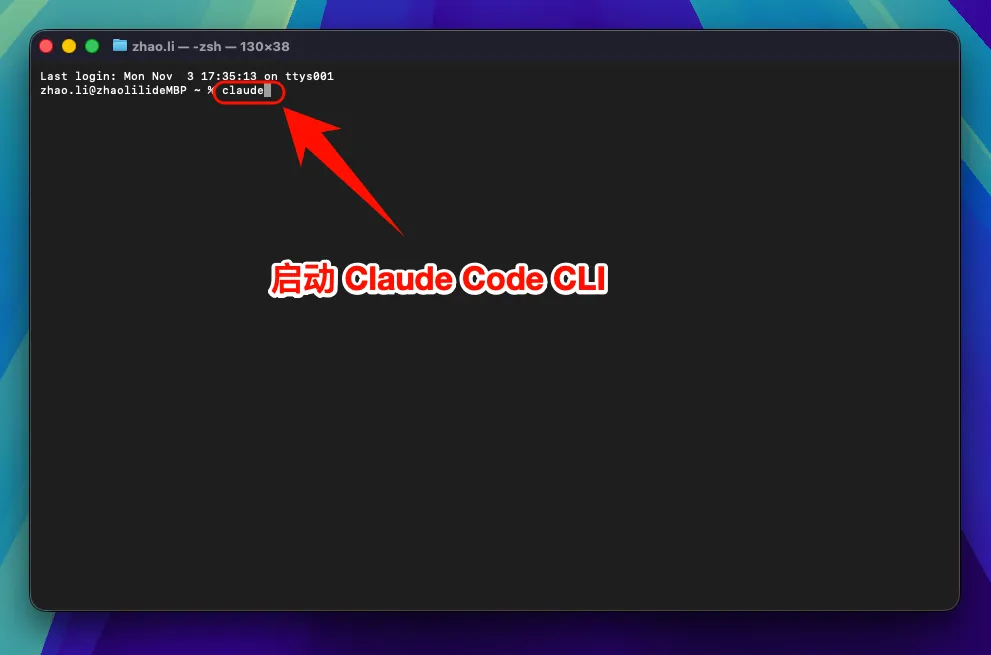
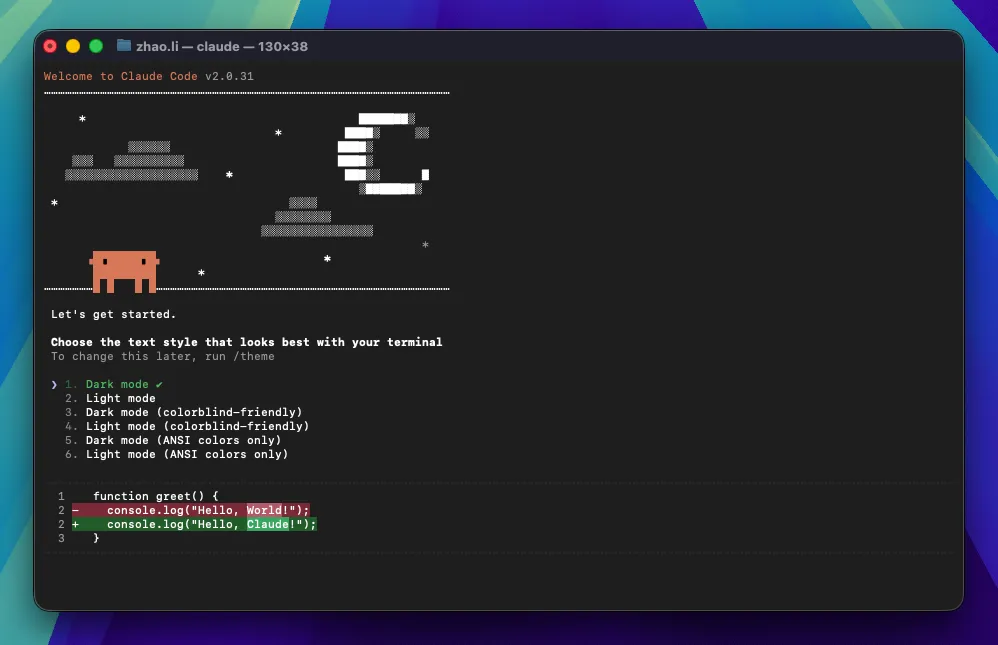
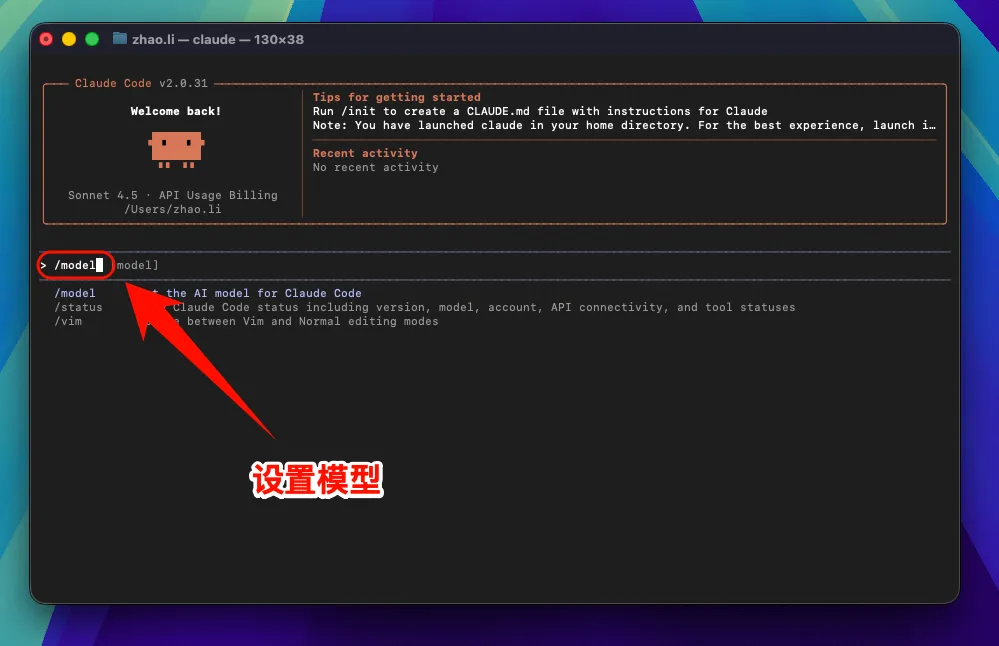
Select Model (Optional)
Enter the command:
/modelPress Enter to select an official model; usually, the default model is sufficient.
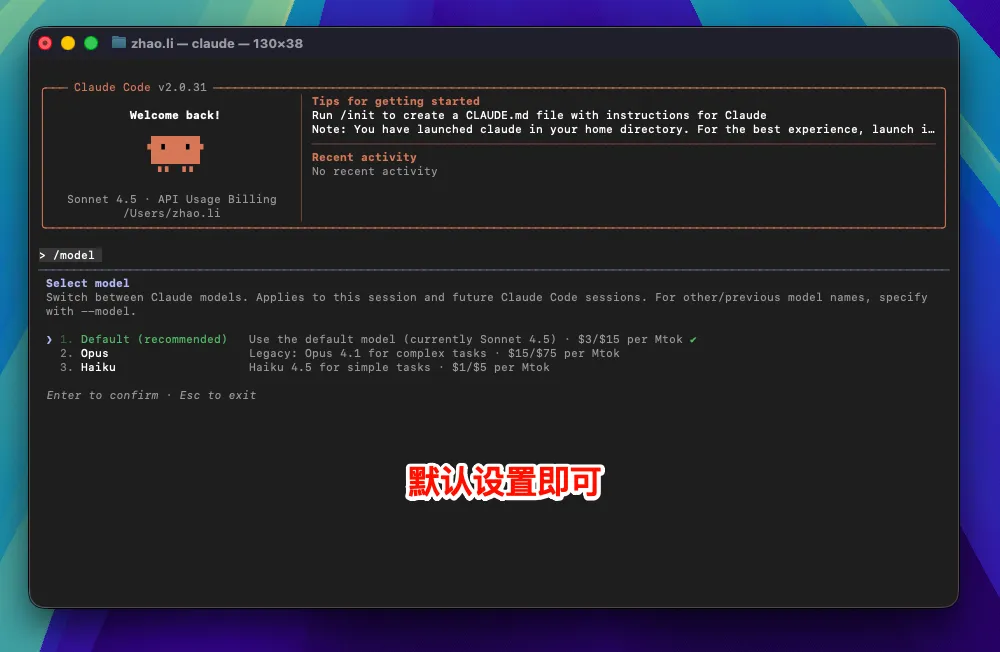
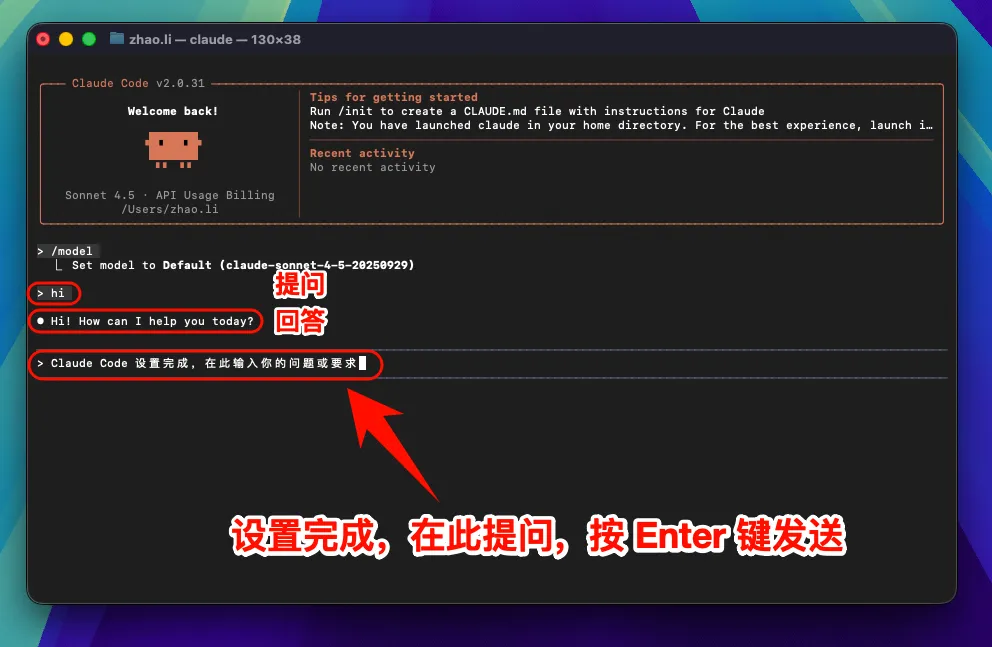
Note: After modifying the
ANTHROPIC_BASE_URLenvironment variable, all models (including officially preset models) will call the custom access point instead of using official account quotas.
4. macOS Common Issues
macOS Security Settings Preventing Execution
If the system prevents Claude Code from running:
- Open "System Preferences" → "Security & Privacy"
- Click "Open Anyway" or "Allow"
- Or run in Terminal:
sudo spctl --master-disable
Linux Graphical Guide
1. Install Claude Code
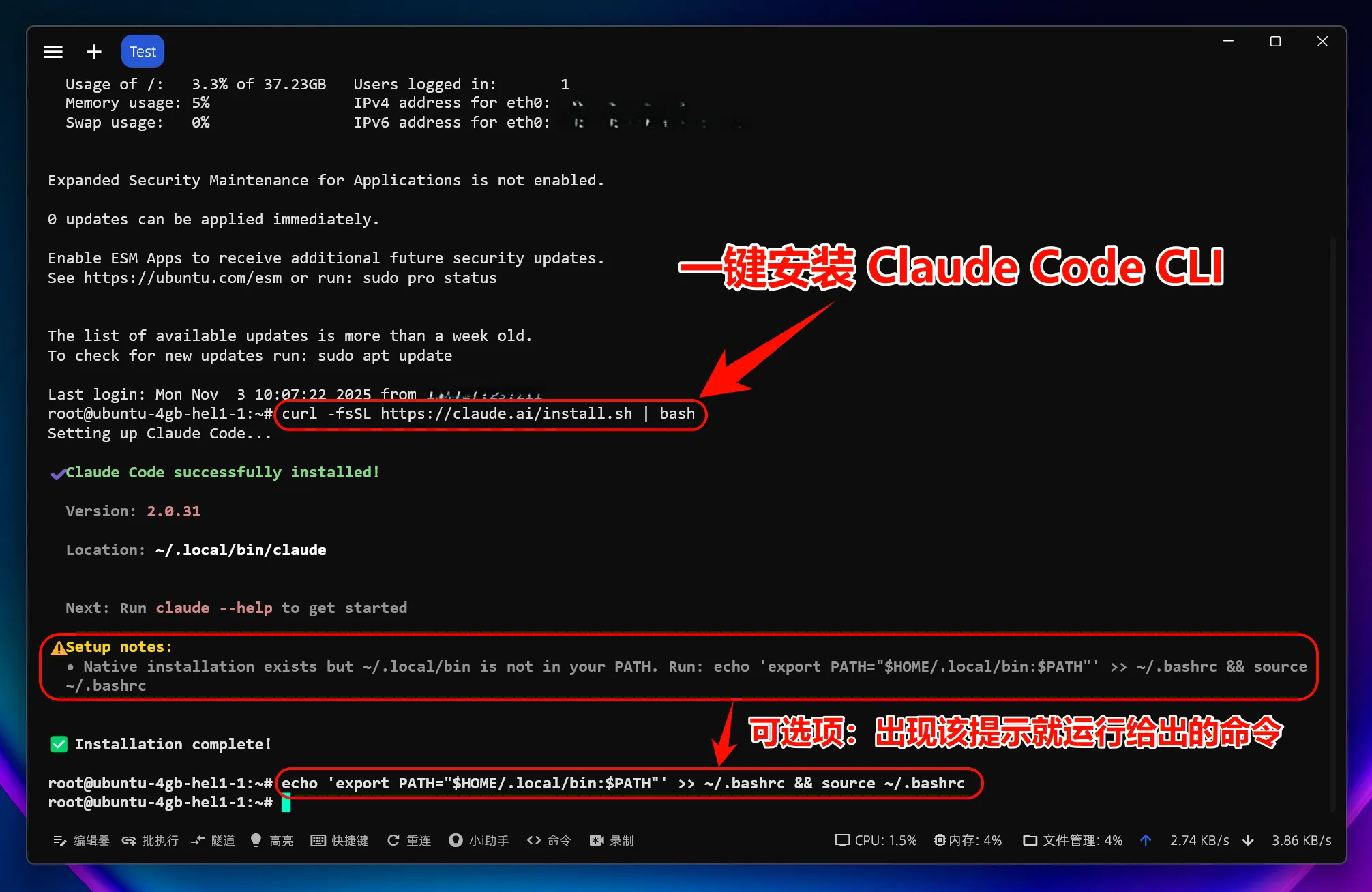
Install Claude Code
Open Terminal and run the following command:
curl -fsSL https://claude.ai/install.sh | bashIf you encounter permission issues, you can use sudo:
sudo curl -fsSL https://claude.ai/install.sh | bash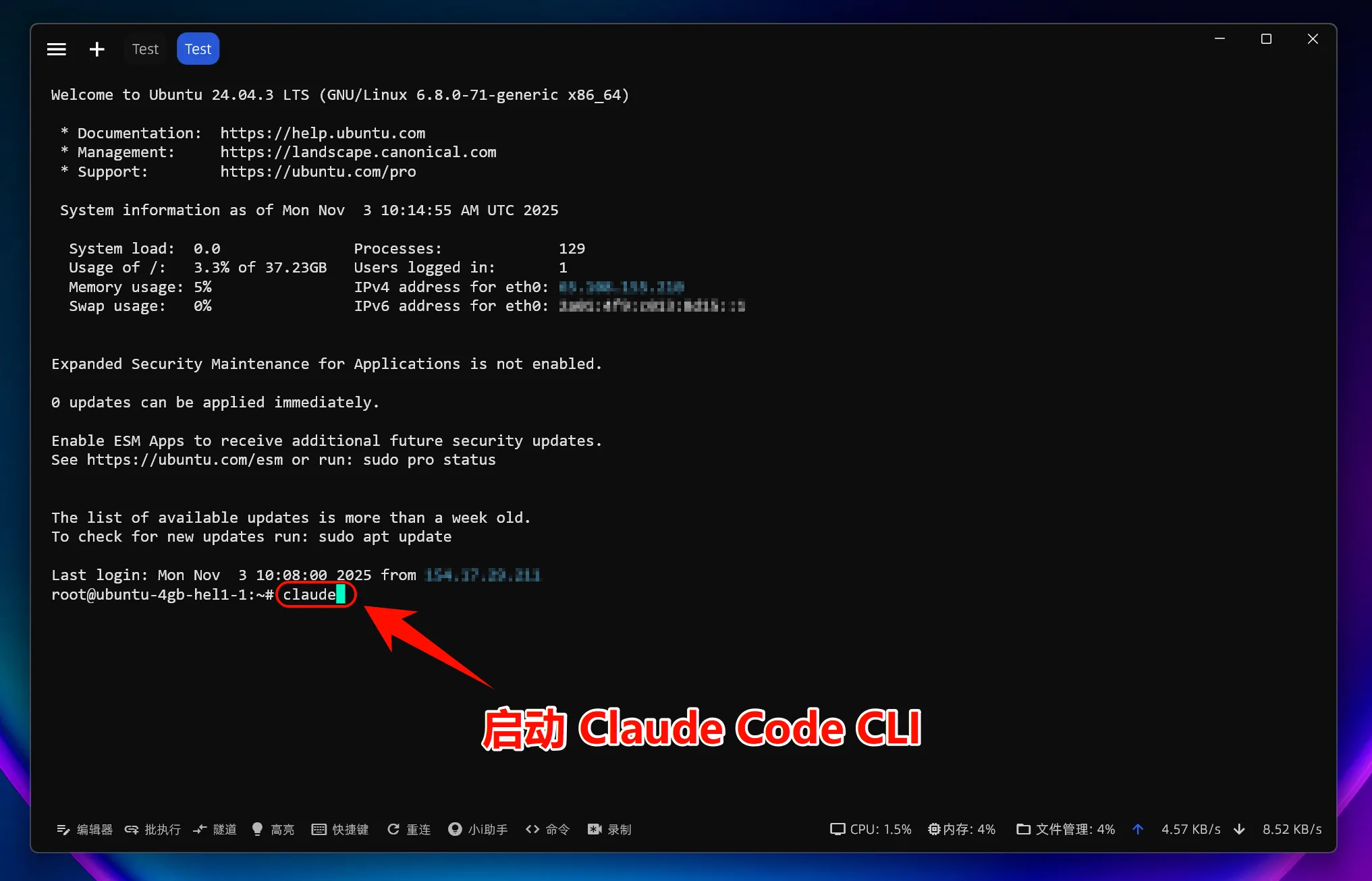
Verify Claude Code Installation
After installation, enter the following command to check if it was successfully installed:
claude --versionIf a version number is displayed, congratulations! Claude Code has been successfully installed.
2. Set Environment Variables
To allow Claude Code to connect to your relay service, you need to set two environment variables:
One-Click Environment Variable Modification
Enter the command:
curl -fsSL https://raw.githubusercontent.com/QuantumNous/new-api-docs/refs/heads/main/helper/claude-cli-setup.sh | bash
3. Start Using Claude Code
You can now start using Claude Code!
Launch Claude Code
Launch Claude Code directly:
claudeTo use in a specific project:
# Navigate to your project directory
cd /path/to/your/project

# Launch Claude Code
claude
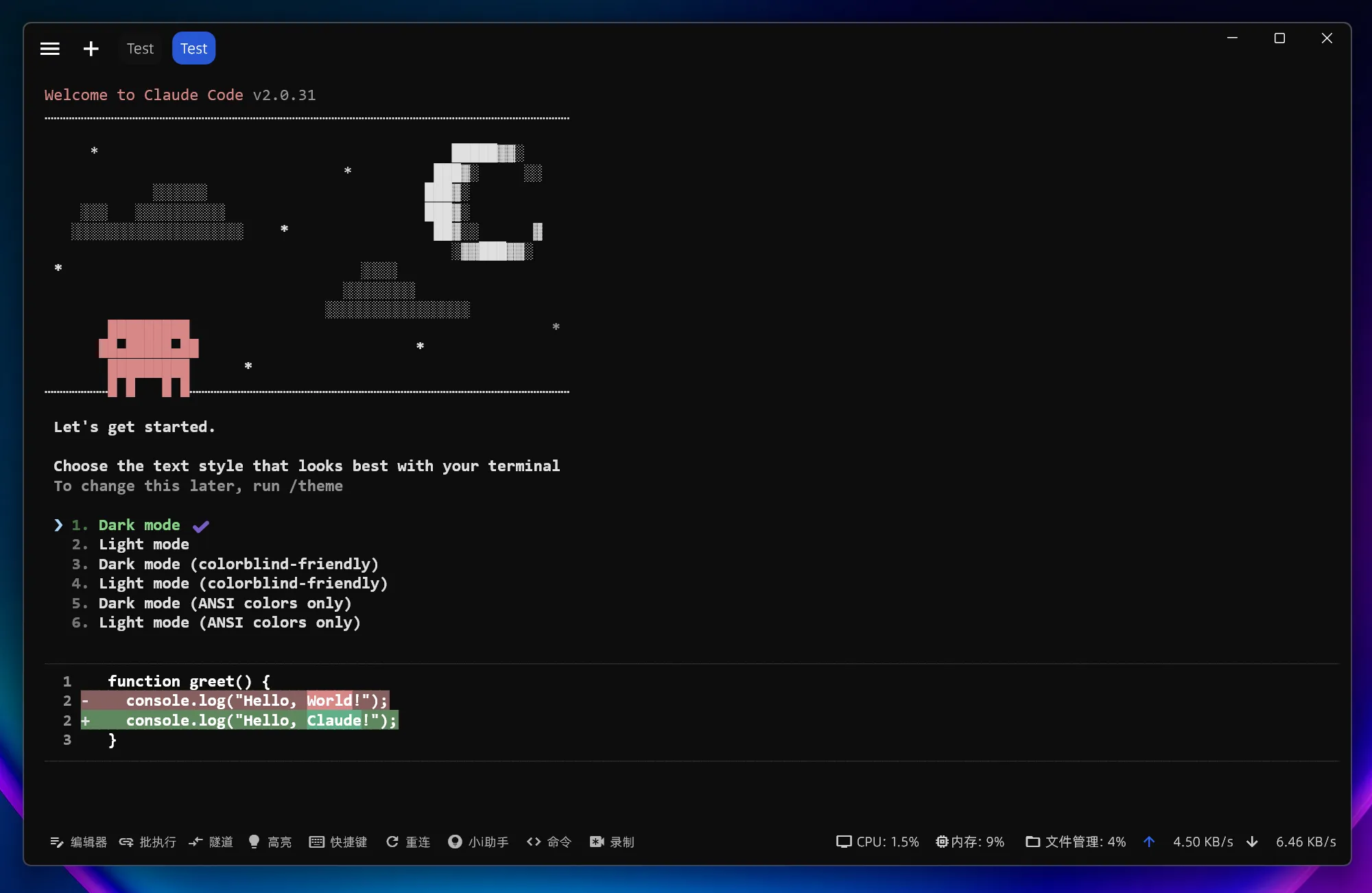
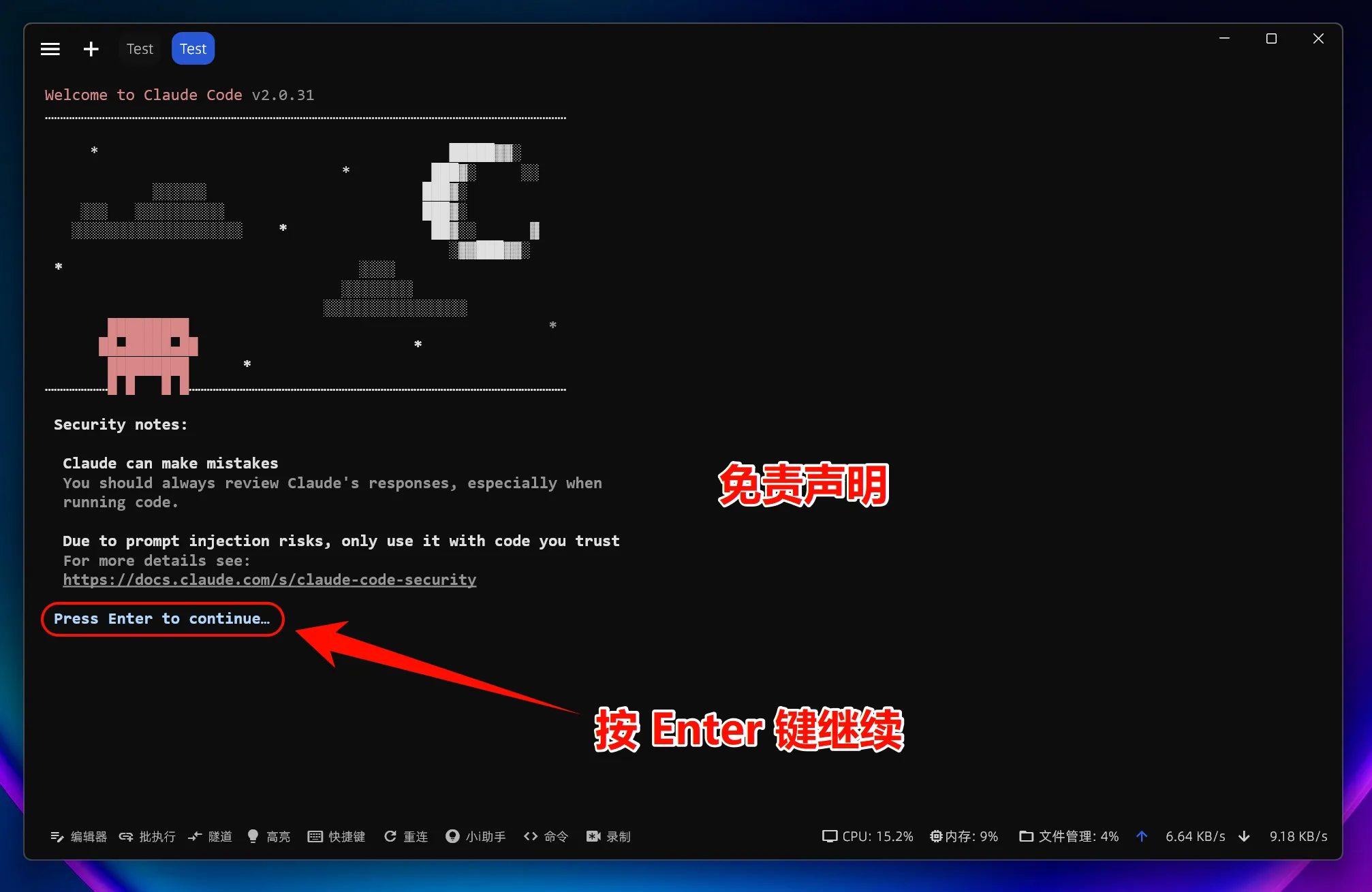
Select Model
Enter the command:
/modelPress Enter to select an official model; usually, the default model is sufficient.
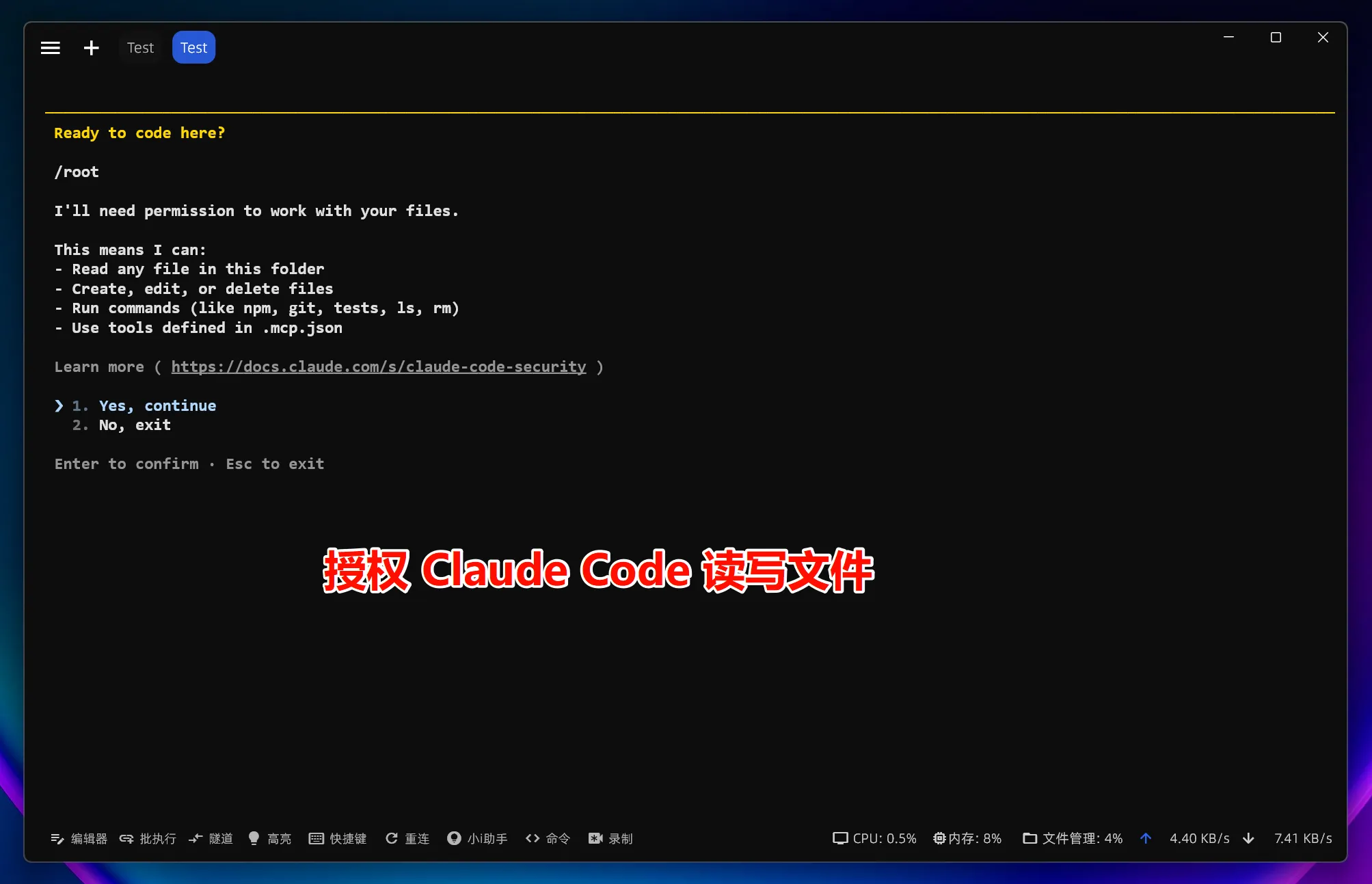
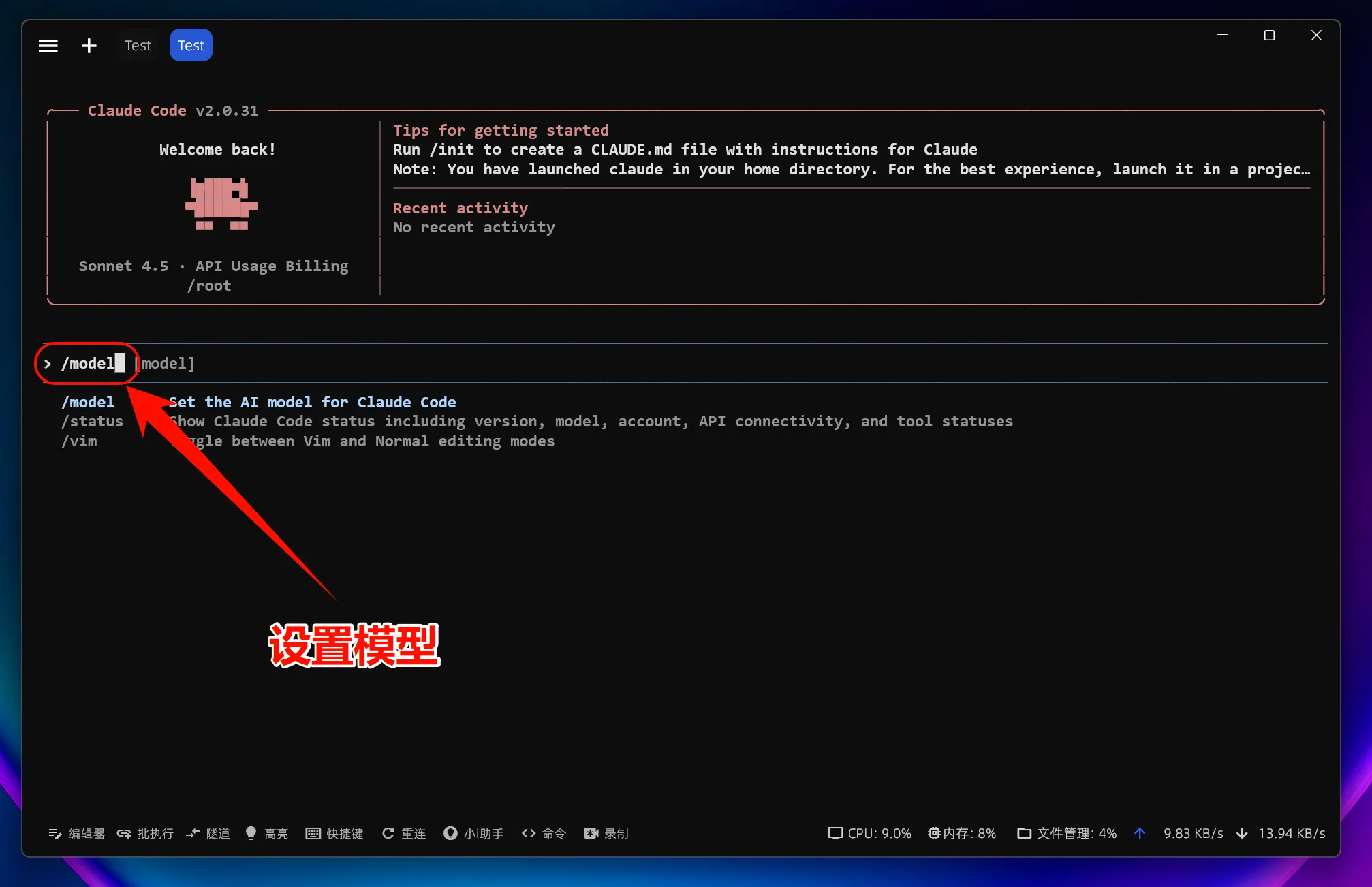
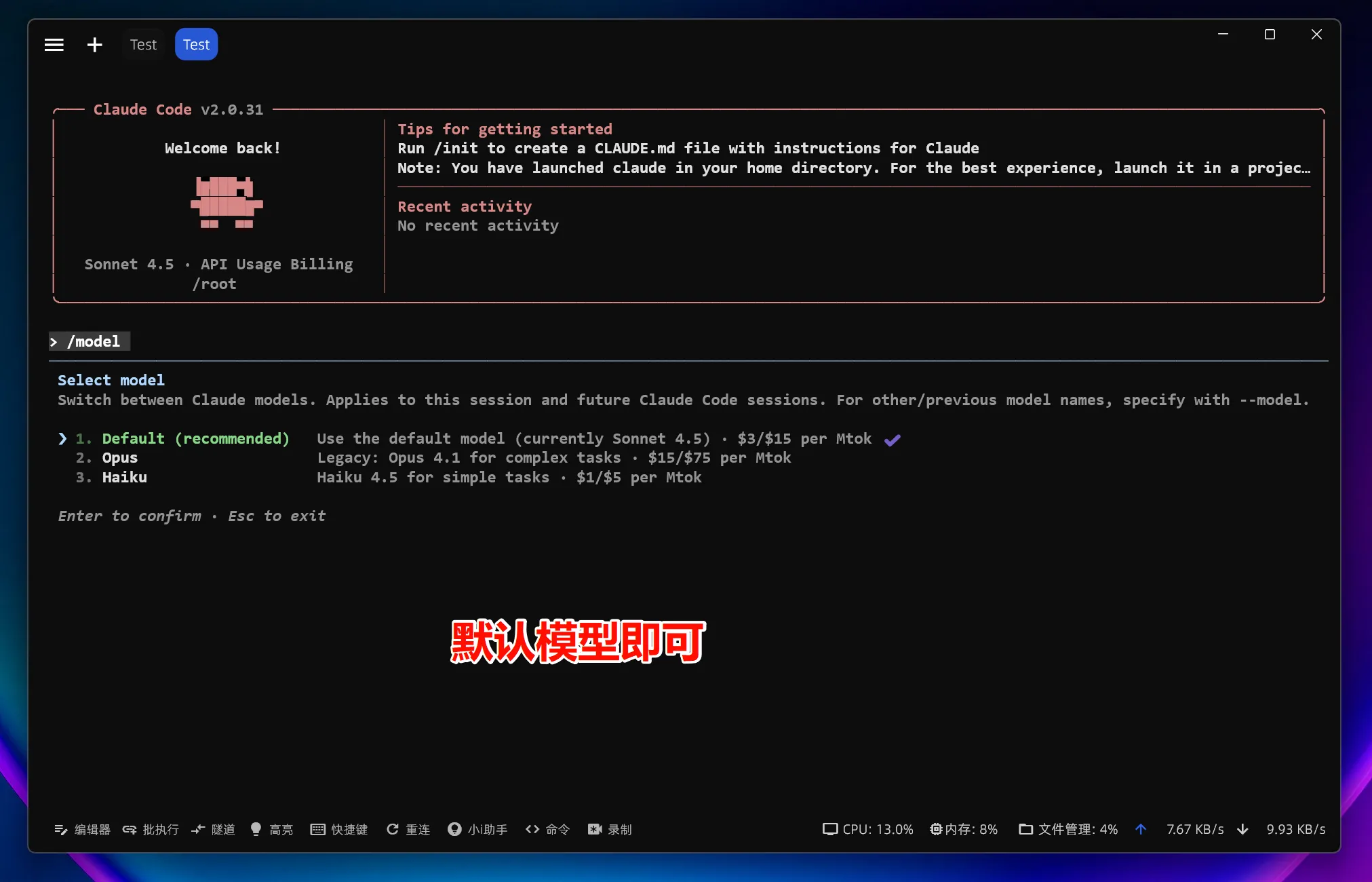
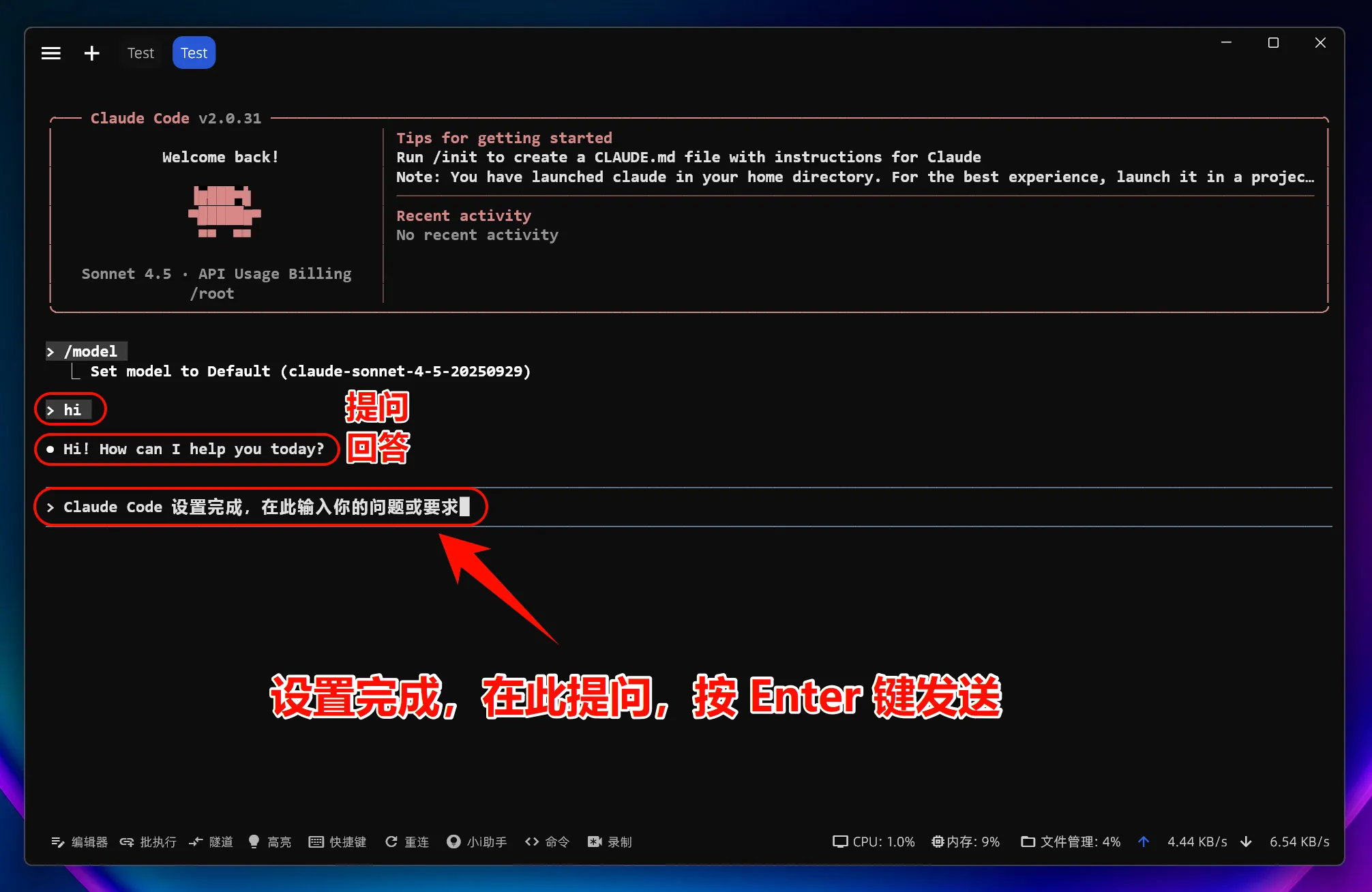
Note: After modifying the
ANTHROPIC_BASE_URLenvironment variable, all models (including officially preset models) will call the custom access point instead of using official account quotas.
4. Linux Common Issues
Missing Dependency Libraries
Some Linux distributions require additional dependencies to be installed:
# Ubuntu/Debian
sudo apt install build-essential

# CentOS/RHEL
sudo dnf groupinstall "Development Tools"
Environment Variables Not Taking Effect
Check the following points:
- Confirm that you modified the correct configuration file (
.bashrcor.zshrc) - Restart the terminal or run
source ~/.bashrc - Verify settings:
echo $ANTHROPIC_BASE_URL
How is this guide?
Last updated on
AstrBot - Agent Chatbot
AstrBot Configuration Tutorial — Integrating the open-source Agent chatbot platform with New API to inject AI capabilities into instant messaging platforms like QQ, Feishu, DingTalk, and WeChat Work.
OpenAI Codex CLI
OpenAI Codex CLI Installation Tutorial — Install a terminal AI coding assistant on Windows, macOS, Linux, connecting to New API. Supports sandbox policies and atomic patch editing.