
CC Switch - All-in-One AI CLI Management Tool
CC Switch tutorial — a cross-platform tool for unified management of Claude Code, Codex & Gemini CLI provider configs, MCP servers, and system prompts. One-click import from New API.
Chat Settings Option
In the New API console under System Settings -> Chat Settings, you can add the following shortcut to enable one-click fill for CC Switch from the token management page:
{ "CC Switch": "ccswitch" }🔀 CC Switch is an open-source, cross-platform all-in-one AI CLI management tool. It supports one-click provider switching for Claude Code, Codex and Gemini CLI, unified MCP server management, system prompts management, and Skills extension management — letting you freely switch between multiple AI coding assistants without manually editing config files.
- GitHub Repository: https://github.com/farion1231/cc-switch
- Download: GitHub Releases
Key Features
🔌 Provider Management
- One-click switching — Switch between Claude Code, Codex, and Gemini API configs instantly, no manual env vars or config file editing
- Multi-endpoint support — Configure multiple endpoints per provider with API key management and latency speed tests
- 4-tier model config — Granular model selection across Haiku / Sonnet / Opus / Custom tiers
🛠️ MCP Server Management
- Unified cross-app management — Manage MCP servers for Claude / Codex / Gemini from a single panel
- Three transport types — Supports stdio, HTTP, and SSE (Server-Sent Events)
- Auto sync — Unified import/export with bidirectional synchronization
💬 Prompts Management
- Multi-preset system prompts — Unlimited presets with quick switching
- Cross-app support — Claude (
CLAUDE.md), Codex (AGENTS.md), Gemini (GEMINI.md) - Markdown editor — CodeMirror 6 with live preview
🌐 Multi-platform Support
- Desktop app — Native installers for Windows, macOS, and Linux
- Web version — Browser-accessible interface for headless servers / SSH environments
- CLI version — Both interactive menu-driven and command-line modes
NewAPI Integration
CC Switch supports the ccswitch:// Deep Link protocol, allowing one-click provider config import from the New API token management page.
Configuration Steps
-
On the New API token management page, click the dropdown menu for the corresponding token Select the CC Switch option from the menu. The system will automatically launch CC Switch and open the configuration dialog.
-
Complete the configuration in the dialog
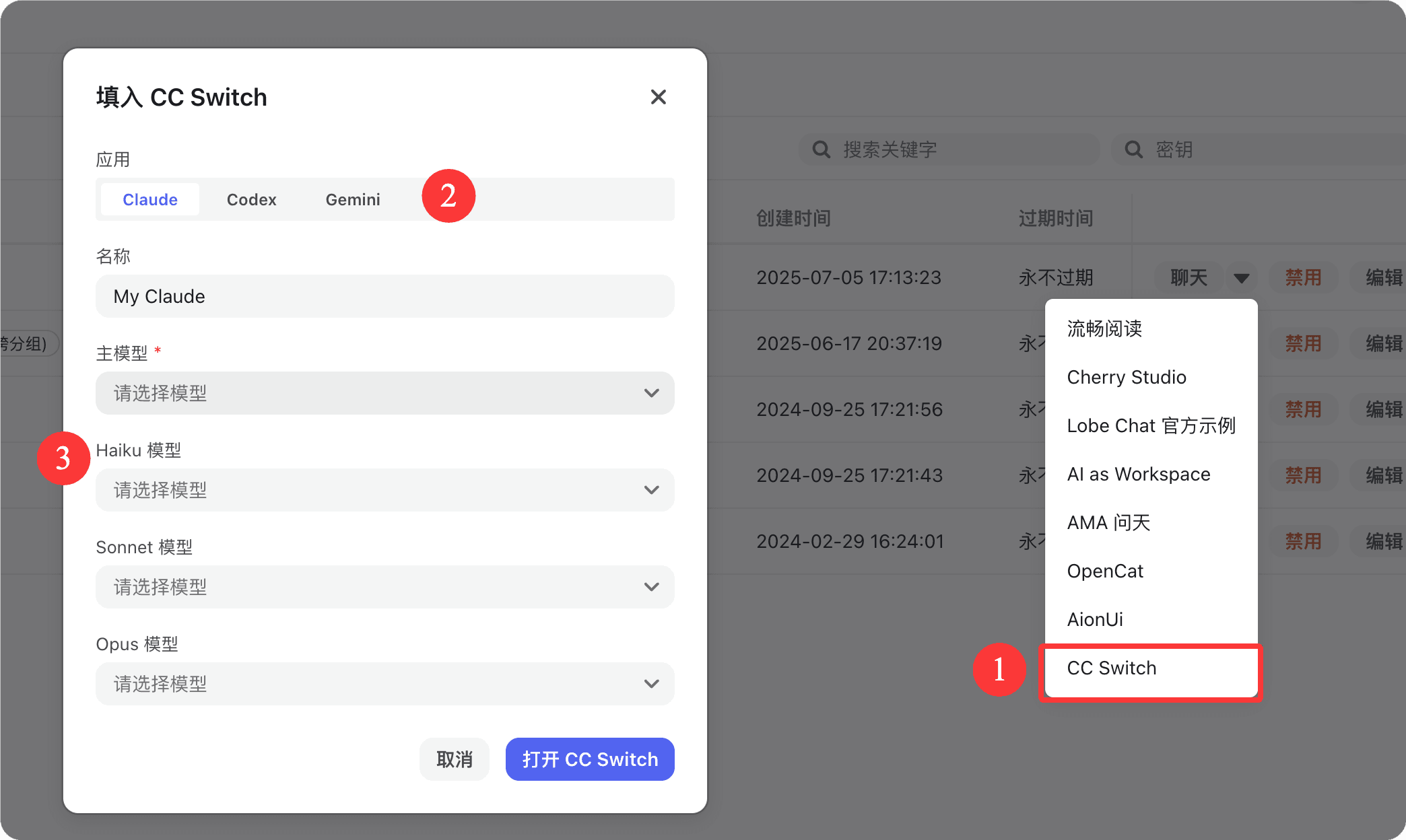
Field descriptions:
- Application: Switch app type at the top — Claude / Codex / Gemini, select the target application as needed
- Name: Enter a name for this config (e.g.
My Claude) to easily identify and switch in CC Switch later - Main Model (required) — The primary model to use by default
- Haiku Model — Lightweight, fast model
- Sonnet Model — Balanced model
- Opus Model — Most capable model
All models are dropdown selections; unselected fields show "Please select model".
-
Finish Click "Open CC Switch" to import the config into CC Switch and start using it; click "Cancel" to discard.
Installation
macOS (Homebrew recommended)
brew tap farion1231/ccswitch
brew install --cask cc-switch
Windows
Download the .msi installer or portable .zip from Releases.
Linux
Download the .deb package or .AppImage from Releases.
ArchLinux users:
paru -S cc-switch-binWeb Version (Headless / SSH Servers)
wget https://github.com/farion1231/cc-switch/releases/latest/download/cc-switch-web-linux-x64.tar.gz
tar -xzf cc-switch-web-linux-x64.tar.gz
cd cc-switch-web/
./cc-switch-web
Default port 17666, access via browser at http://localhost:17666.
Related Links
How is this guide?
Last updated on
AionUi - Free Open-Source Desktop Office Agent
AionUi Tutorial — A free open-source desktop office agent supporting various AI agents like Gemini CLI, Claude Code, Codex, and more. Integrates with New API to enable multi-model workflows.
Cherry Studio - Desktop AI Client
Cherry Studio Tutorial — Connecting the desktop AI client to New API, one-click API Key entry. Built-in 30+ professional AI assistants, covering various work scenarios.